Personalize Profile
Overview
The email provided while signing up to the Accounting system will be the primary email address.
You can drop a profile picture on the profile page. The Accounting system allows you to keep books of multiple companies on the same profile. So you can switch between your companies with one click.
Profile
You can view your profile by clicking the avatar icon on the top left of the Sidebar. You can change your personal information such as name, email, profile picture, and portal preferences such as companies, roles, landing page, and language.
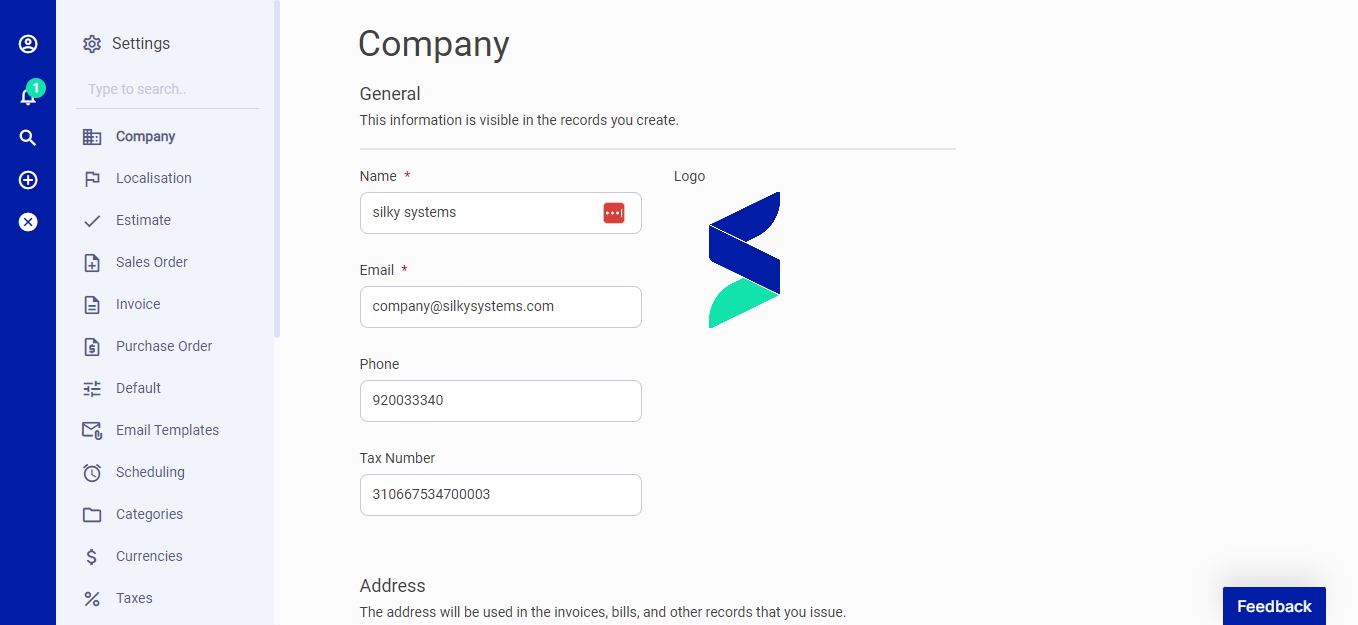 Figure.01 Company Profile
Users
The the Accounting system profile creator is, by default, the admin. You can add only two users to the free plan. To add more users, check the Silky System Premium.
While creating a user, you'll need to choose the user's role and company. The user will only have access to assigned companies and role permissions.
How can I create a new User? You should follow these steps to add a new user.
- Click the profile icon on the top left of the Sidebar.
- Go to Users
- On the Users page, Click "Invite User" on the top right of the page
- Enter the required fields and Save
- An invitation link will be sent to your new User.
When you send an invitation link to a user, They can be able to access your company portal with the given permission. If the permission settings do not meet your needs, you can try Role Management.
If your Silky System is not self-hosted, you must upgrade to the Premium Cloud Plan.
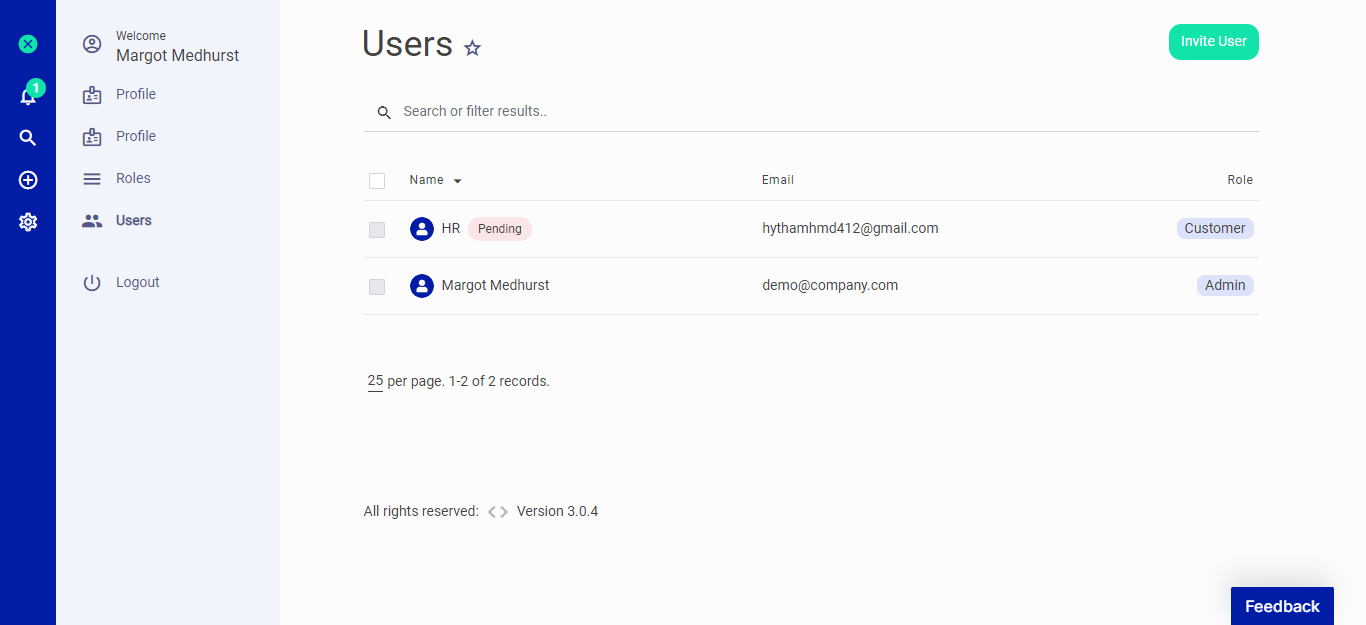 Figure.01 Users
Roles
You can create roles and define permissions for users. The user will only have access to assigned role permissions.
How can I create a new Role? You should follow these steps to add a new user.
- Click the profile icon on the top left of the Sidebar.
- Go to Roles
- On the Roles page, Click "New Role" on the top right of the page
- Enter the required fields, check the permissions and click Save
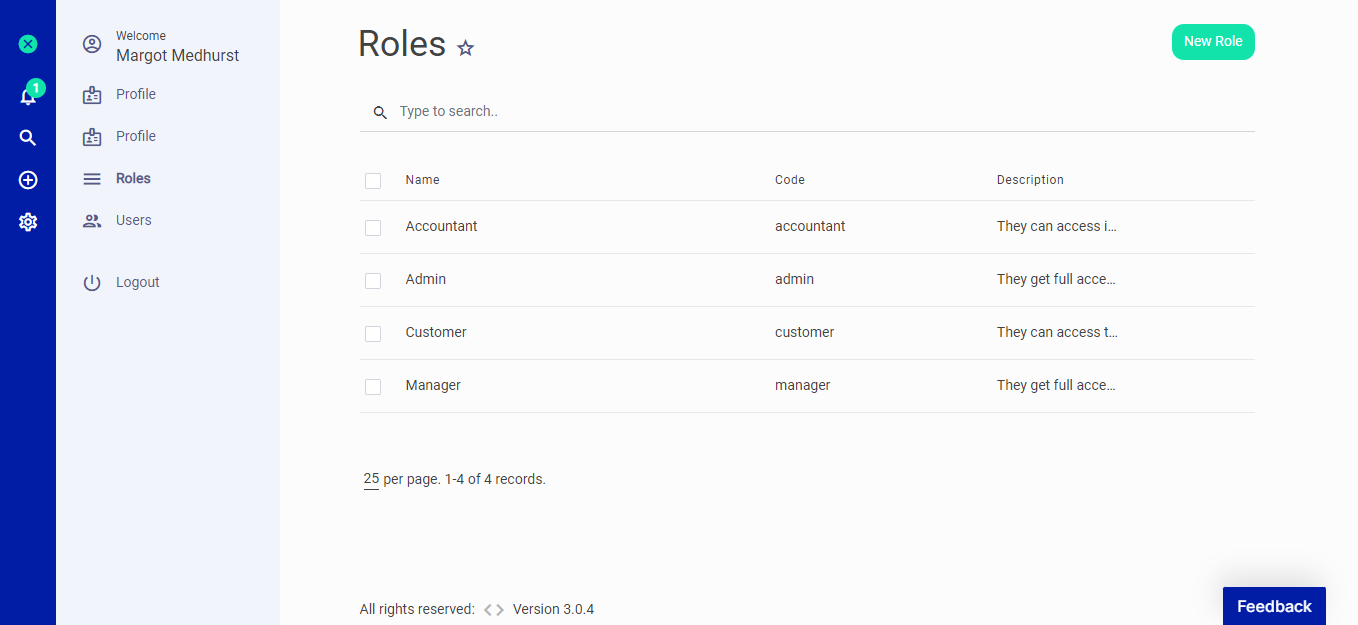 Figure.01 Roles