Dashboard
The Dashboard is your default home page in the Accounting system. Here you can get a clearer insight into the position and performance of your company's financial data.
Before looking into the various sections in the Dashboard, here are tips on how you can customize your company's Dashboard.
You can select the timeframe for any information you need. The date picker on the top right of the dashboard page allows you to see your company's performance in a timeframe. As you select the period, your Dashboard brings together the insight accordingly.
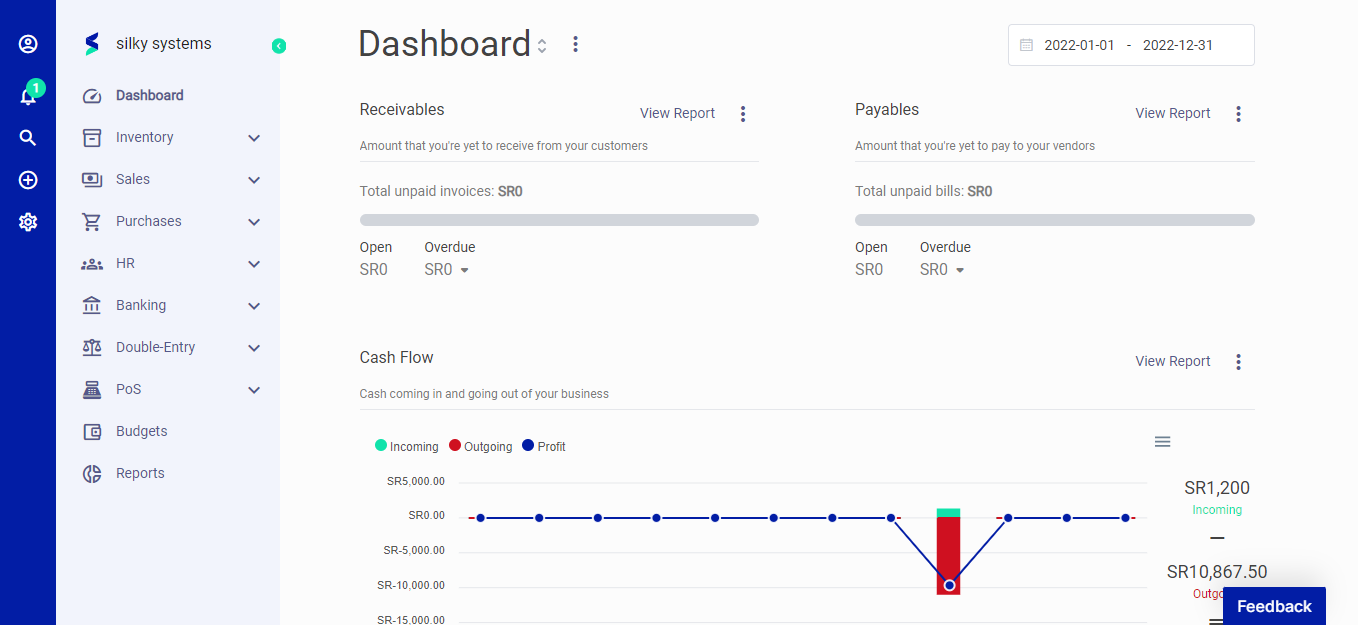 Figure.01 Dashboard
Create and Manage Dashboards
The Accounting system allows users to create multiple dashboards for a company or certain users in your company. You can create dashboards by clicking on the three dots at the top of the dashboard page more options button and selecting the "Create Dashboard" option.
Name your Dashboard and select the users you want to give access to the new Dashboard. You can see the list of your dashboards and check whom in your organization has access to which dashboards on the "Manage Dashboards" option.
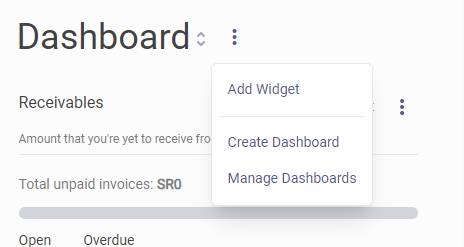 Figure.02 Create and Manage Dashboards
Add Widgets
Sections in dashboards are called widgets. They are designed to give you a quick picture of the information that can be digestible at a glance. For further details, you can always use Reports.
To add a widget, click on the three dots at the top of the dashboard page and select the "Add Widget" option. A window opens with fields for name, type, Width, and Sort.
You can choose the widget size by selecting the Width, while Sort lets you decide where you want it positioned on the Dashboard.
Now you know how to personalize your dashboards, let's deep dive into the default widgets on your Dashboard.
Receivables
The Receivables section displays the amount you're yet to receive from your customers. The section is divided into two parts:
- Open: The total amount of invoices you have created for the selected timeframe and expect to receive within the due date.
- Overdue: The number of invoices you're yet to receive after the due date has passed. You can see more details about the outstanding invoices by clicking on more details.
You can deep dive into the information by clicking on View Report.
Payables
The payables section displays the amount you're yet to receive from your customers. The section is divided into two parts:
- Open: The total amount of bills you have recorded for the selected timeframe on the payment schedule and not paid yet.
- Overdue: The number of bills with an exceeded due date for the payment. You can see more details about the overdue invoices by clicking on more details.
You can deep dive into the information by clicking on View Report.
Cash Flow
The Cash Flow section helps you analyze the cash coming in and out of your company within a set timeframe. This section displays the performance chart, income, expense, and profitability.
You can always get more information by clicking on View Report.
Profit and Loss
The Profit and Loss section displays your company's total income and expenses using a bar chart every month. You can quickly get a picture of your best-performing months.
Expenses by Category
The Expense by Category section is a donut chart that displays all the top expenses recorded in the Accounting system. Being on top of your expense information is crucial for managing business cash flow. This chart is designed to help you see your returns on money spent.
Account Balance
The Account Balance section displays the list of all your bank accounts recorded in the Accounting system. The records on the Accounting system and your bank account can be easily matched by connecting your bank account via Bank Feeds.