Settings
The Settings menu allows you to personalize the Accounting system according to your needs and configure the apps you installed and subscribed to.
Company
The Company settings page is located under Settings > Company menu. On this page, you can update the details of each company.
Company
- Name: Company's name.
- Email: Company's email.
- Phone: Company's phone number.
- Tax Number: The tax number to be used on invoices.
- Address: The company address to be used on invoices.
- Logo: The company's logo to be used in the client portal, invoices, etc.
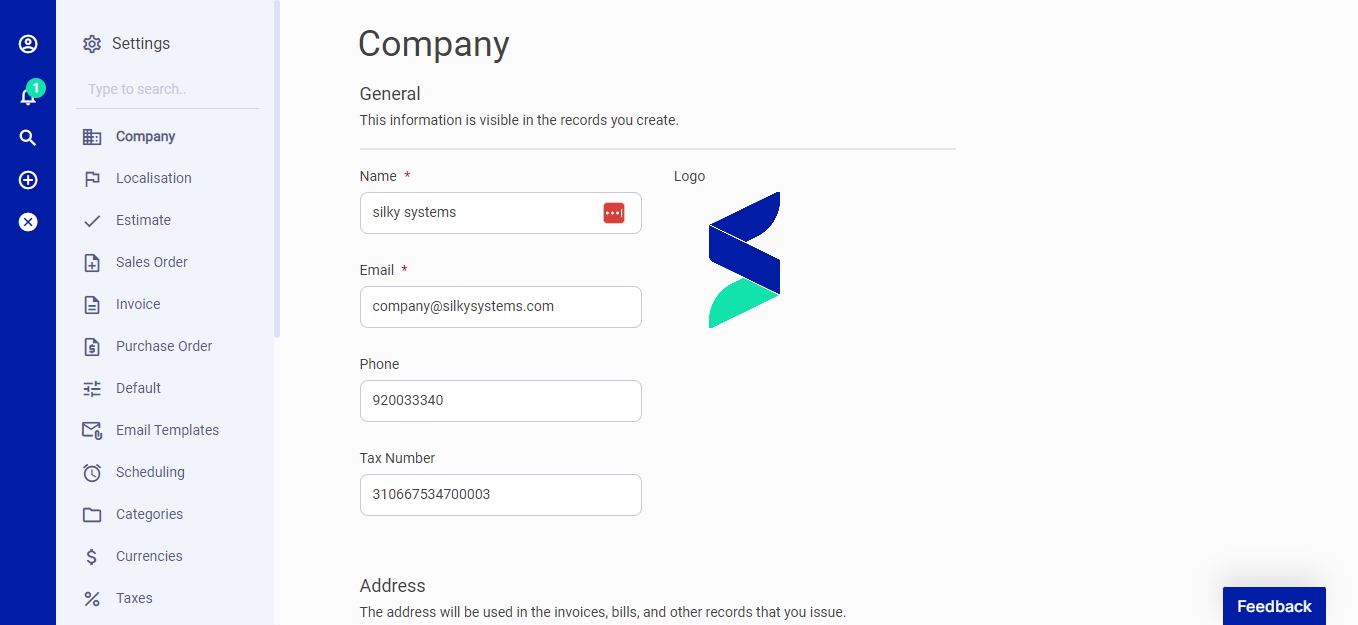 Figure.01 Company settings
Localization
The localization settings page is located under the Settings menu. You can change your company's fiscal year and more on this page.
- Financial Year Start: The day and month of the financial year start.
- Date Format: The default date format for your app.
- Data Separator: The separator of date format.
- Time Zone: The time zone of the company.
- Percent Position: Select the position of the percentage sign.
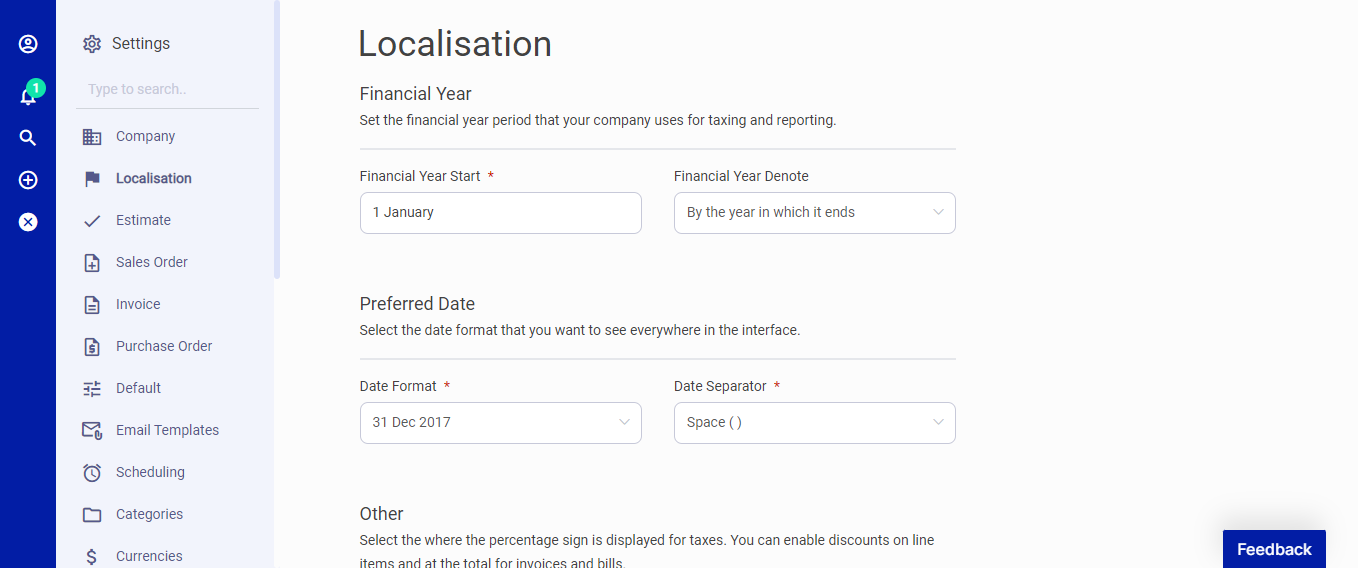 Figure.02 Localization
Estimate
The Estimate settings page is located under the Settings menu. Set the defaults for formatting your estimate numbers and payment terms, select one of the templates for your estimates. Customize how the estimate columns are named. If you like to hide item descriptions and amounts in lines, you can change it here.
- General: Set the defaults for formatting your estimate numbers and payment terms.
- Template: Select one of the templates for your estimates.
- Defaults: Selecting defaults for estimates will pre-populate titles, subheadings, notes, and footers. So you don't need to edit estimate each time to look more professional.
- Columns: Customize how the estimate columns are named. If you like to hide item descriptions and amounts in lines, you can change it here.
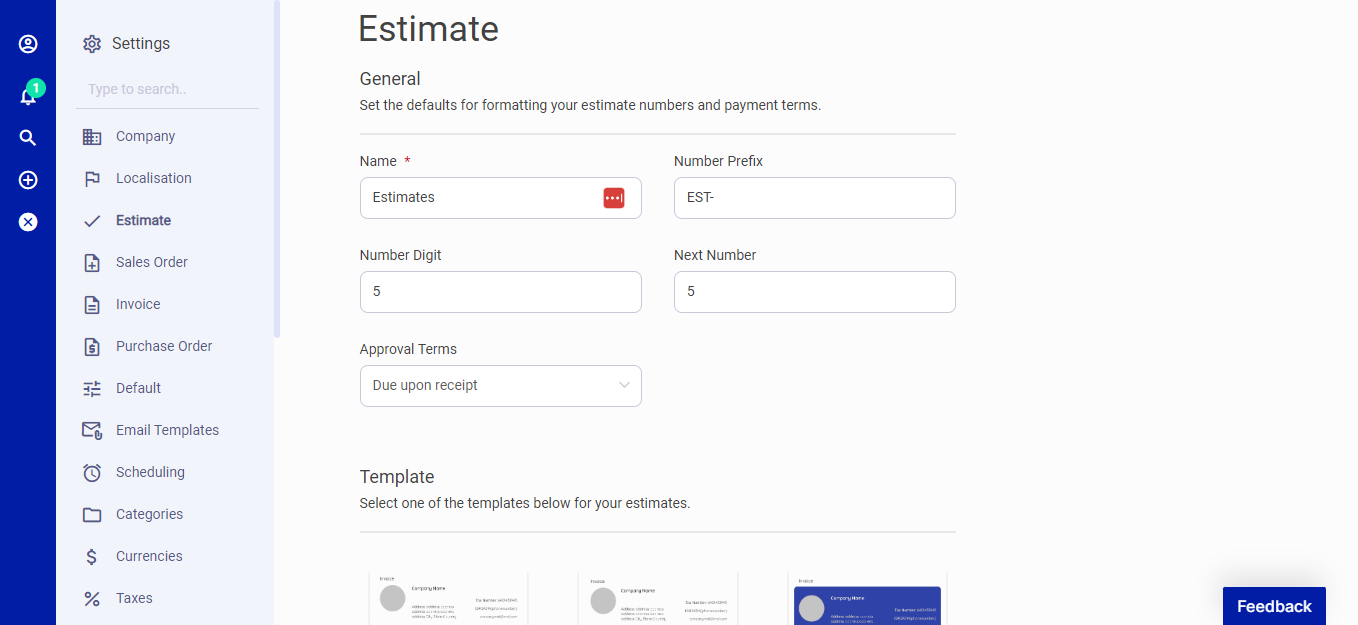 Figure.03 Estimate
Sales Order
The sales order settings page is located under the Settings menu. Set the defaults for formatting your sales order numbers and payment terms, select one of the templates for your sales orders. Customize how the sales order columns are named. If you like to hide item descriptions and amounts in lines, you can change it here.
- General: Set the defaults for formatting your sales order numbers and payment terms.
- Template: Select one of the templates for your sales orders.
- Defaults: Selecting defaults for sales orders will pre-populate titles, subheadings, notes, and footers. So you don't need to edit sales order each time to look more professional.
- Columns: Customize how the sales order columns are named. If you like to hide item descriptions and amounts in lines, you can change it here.
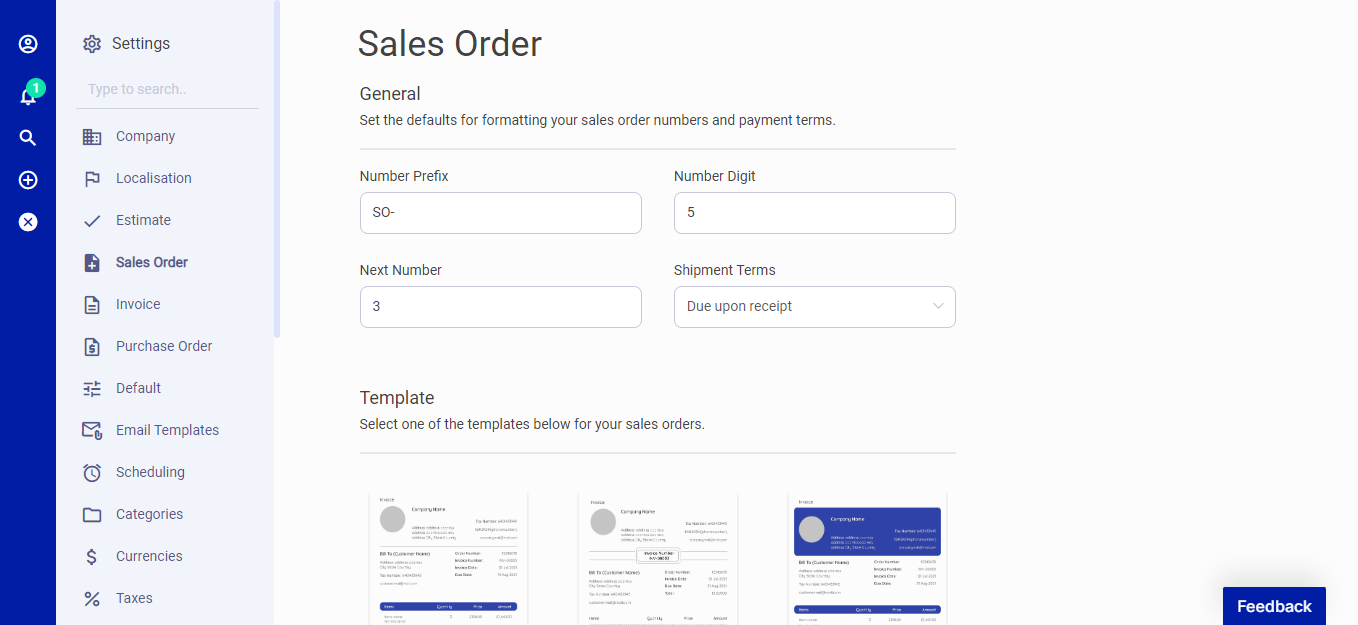 Figure.04 Sales Order
Invoice
You can create a new invoice template or select from a list of invoice templates. Invoice Setting allows you to set the defaults for formatting your invoice numbers and payment terms.
You can also customize one of the three default templates.
The fields below are not required, but they may be crucial if you need to personalize your invoices.
General Terms & IDs for Invoices
- Number Prefix: The word to be placed before the invoice number.
- Number Digit: The number of digits of the invoice number.
- Next Number: The upcoming invoice's number.
- Payment Terms: Default payment terms. You can override this each time you create an invoice.
Defaults for Invoices
- Title: Invoice title.
- Subheading: Subheading that will be displayed below the title of each invoice.
- Footer: The specified footer display for the bottom of each invoice. You can override this per invoice.
Column Personalization
- Item Name: The title content used for items can be personalized.
- Price Name: The title content used for the price can be personalized.
- Quantity Name: The title content used for quantity can be personalized.
- Logo: The company logo to be used in invoices.
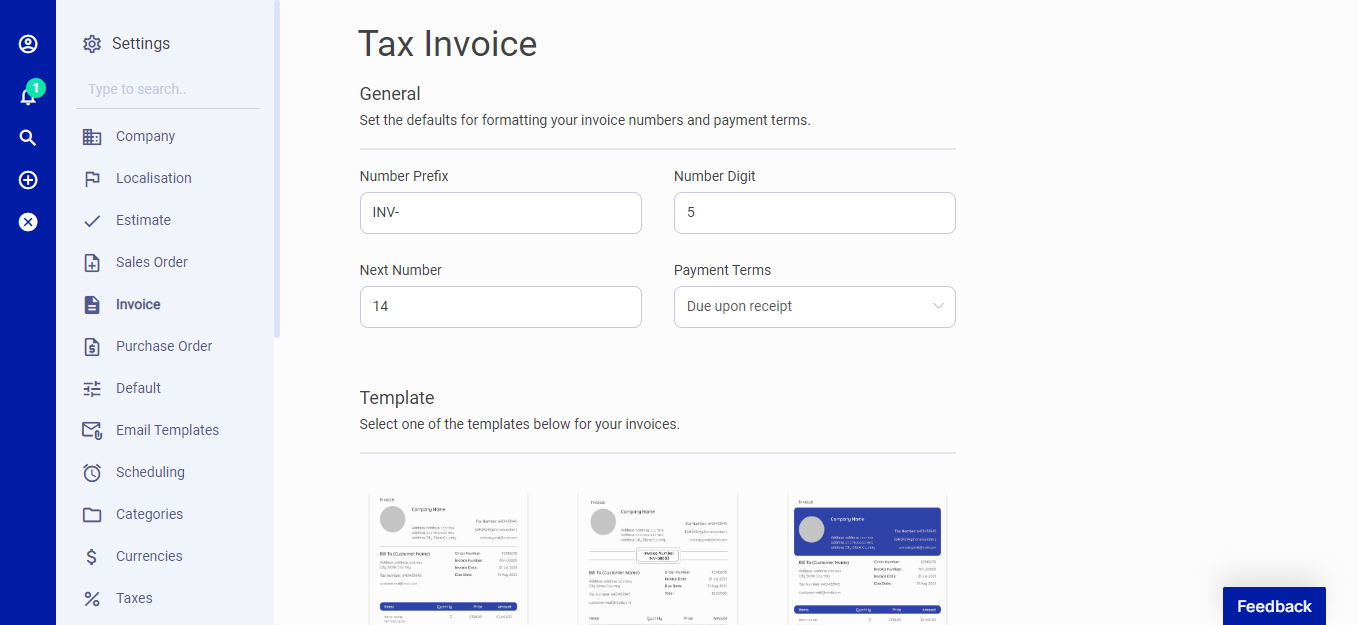 Figure.05 Sales Order
Purchase Order
The purchase order settings page is located under the Settings menu. Set the defaults for formatting your purchase order numbers and payment terms, select one of the templates for your purchase orders. Customize how the purchase order columns are named. If you like to hide item descriptions and amounts in lines, you can change it here.
- General: Set the defaults for formatting your purchase order numbers and payment terms.
- Template: Select one of the templates for your purchase orders.
- Defaults: Selecting defaults for purchase orders will pre-populate titles, subheadings, notes, and footers. So you don't need to edit purchase order each time to look more professional.
- Columns: Customize how the purchase order columns are named. If you like to hide item descriptions and amounts in lines, you can change it here.
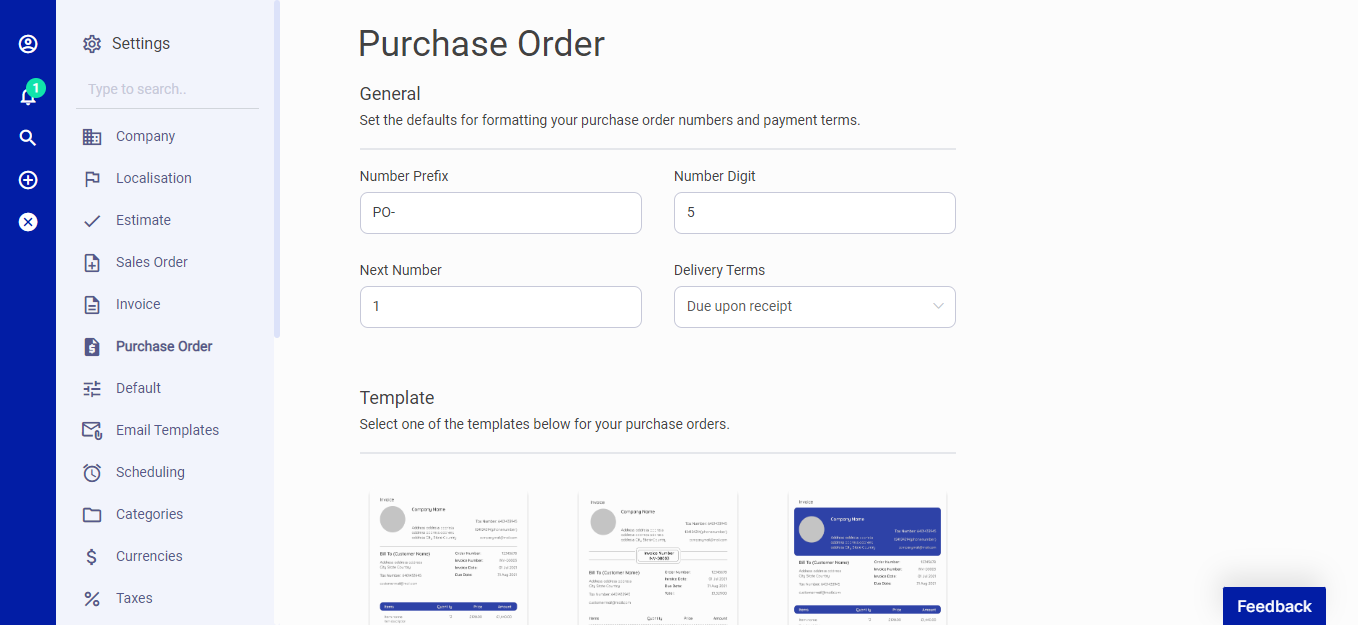 Figure.06 Purchase Order
Default
Set the default for Account, Currency, Payment method, Income category, and more. While creating an account, you set up your companies based currency. If you change your company's currency, your report's default currency will also change. Hence, you should adjust currency rates.
Below are the defaults you can adjust:
General
- Account: Default account to be used when marking invoices/bills as paid.
- Currency: Default currency to be used in charts etc.
- Tax: Default tax to be used when creating an item, customer, etc.
- Payment Method: Default payment method to be used when marking invoices/bills as paid.
Categories
- Income Category: Select the default category to expedite income creation.
- Expense Category: Select the default category to expedite expense creation.
Other
- Language: Default language to be used on the User Interface.
- Records Per Page: Number of records to be shown on the list page.
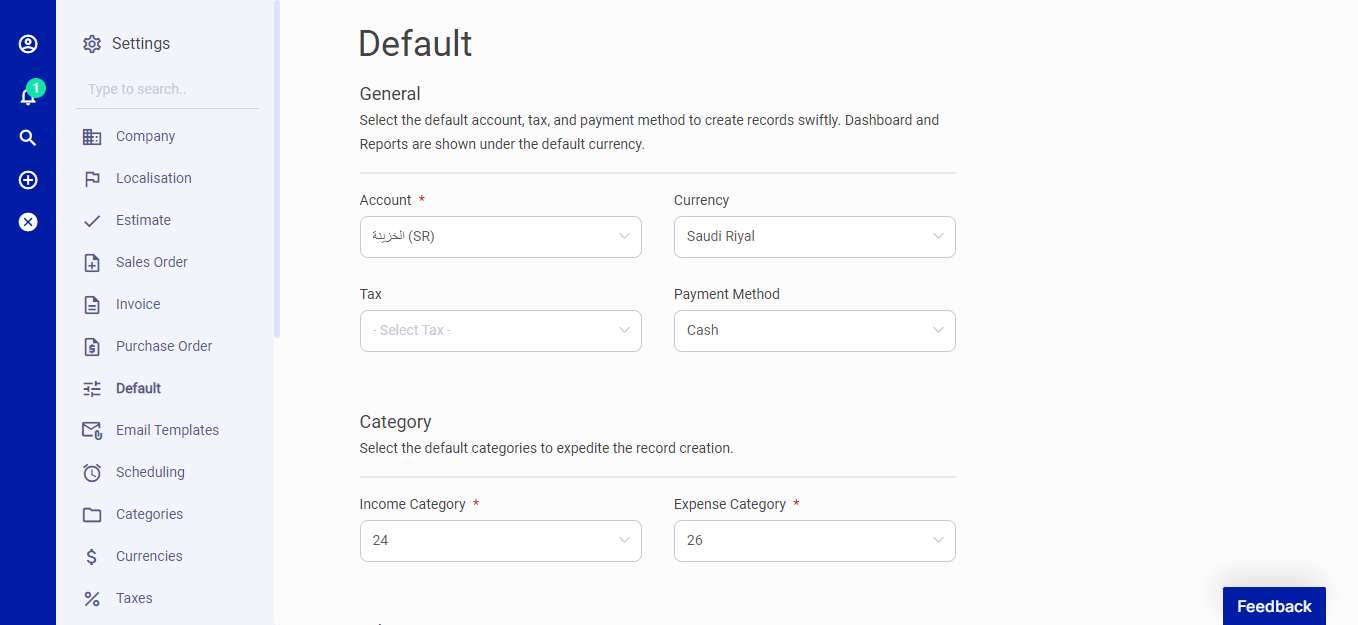 Figure.07 Default
Email Templates
By default, there are four categories with email templates:
- Bills
- Invoices
- Payments
- Others
Each category has an email template(s) that specifies the receiver, and the copies can be customized according to your preference. Receivers are classified into the Admin, the Customer, and the Vendor.
You can edit the Subject line and Body of the email templates by selecting the record type on the left and choosing the email for whom the template is created.
You can use the suggested tags summarized at the bottom of the page in the "Available tags" section to enhance your invoice personalization.
Note that to send emails to your customers, you must add their email addresses on the customer's page.
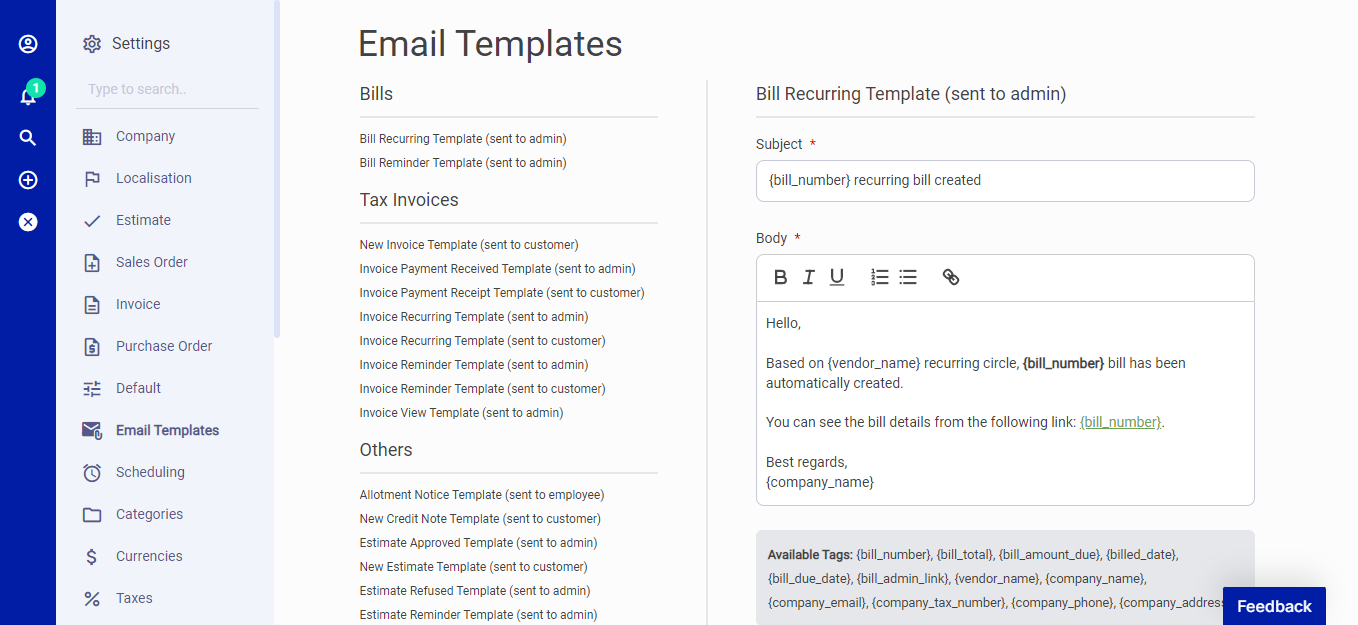 Figure.08 Email Templates
Scheduling
You can enable or disable reminders for your overdue/upcoming invoices or bills here.
These reminders work with your email templates and automatically send emails based on your schedule. Once you set a reminder, you do not need to update it when creating a new record.
The following fields are found on the scheduling page:
Send Invoice Reminder: You can enable/disable the send invoice reminder email to your customers.
Send After Due Days: Type in the days after the due date to send the invoice reminder.
Send Bill Reminder: You can enable/disable bill reminder email for yourself.
Send After Due Days: Type in the due date to send the bill reminder.
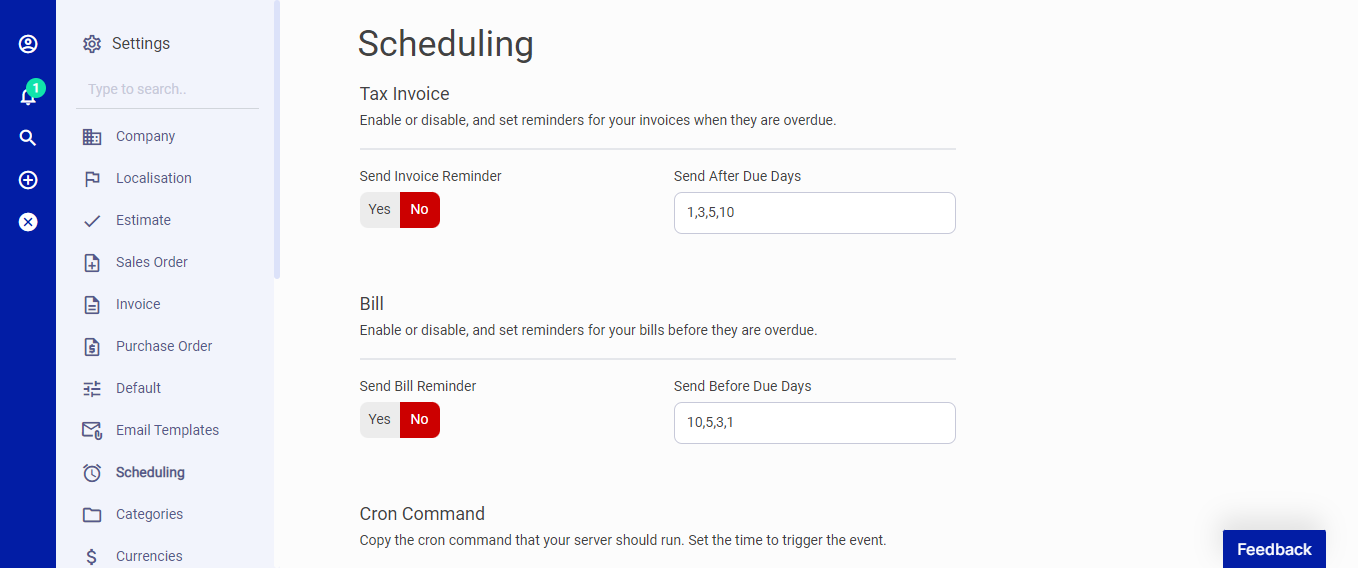 Figure.09 Scheduling
Categories
You can divide transactions into groups through categories. Categorization makes it easy to track your transactions on reports.
You can create categories for invoices, expenses, and items. On this page, you can see all categories, search for any, create a new one, edit the current ones, import or export categories and delete them.
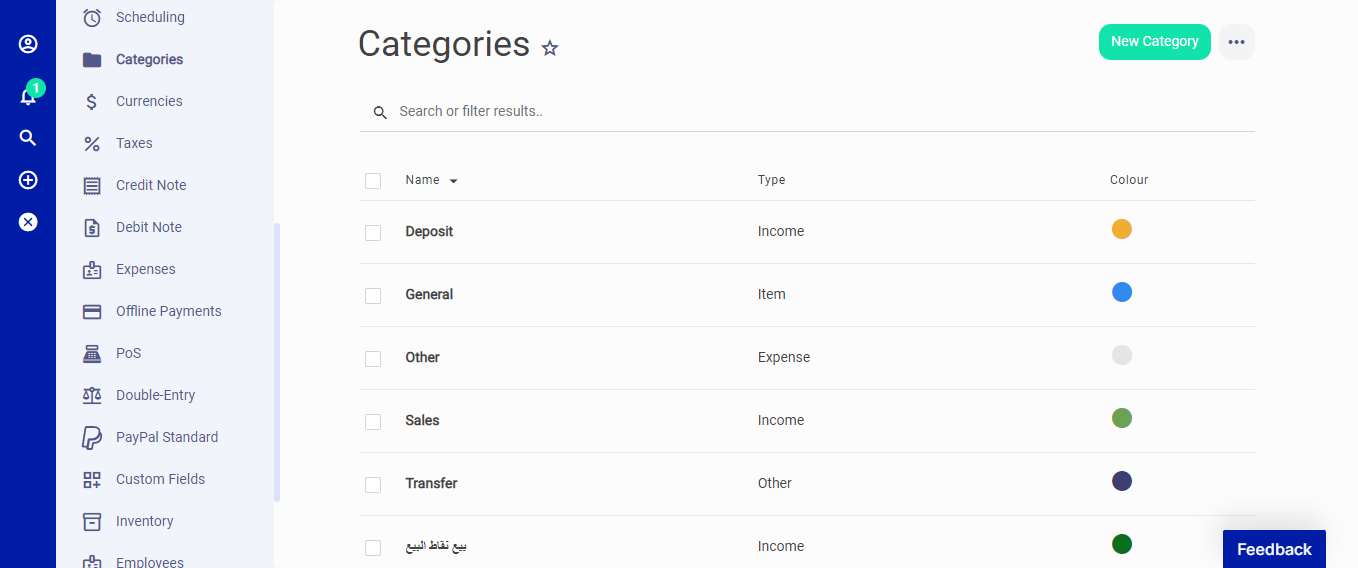 Figure.10 Categories
Currencies
The Accounting system makes it easy for your Business to deal with multiple currencies. You can create, edit, or delete currencies according to your Business's needs.
You can name the currency and select the code and symbol for the currency. The thousand separators and symbol position are basic settings for your documents.
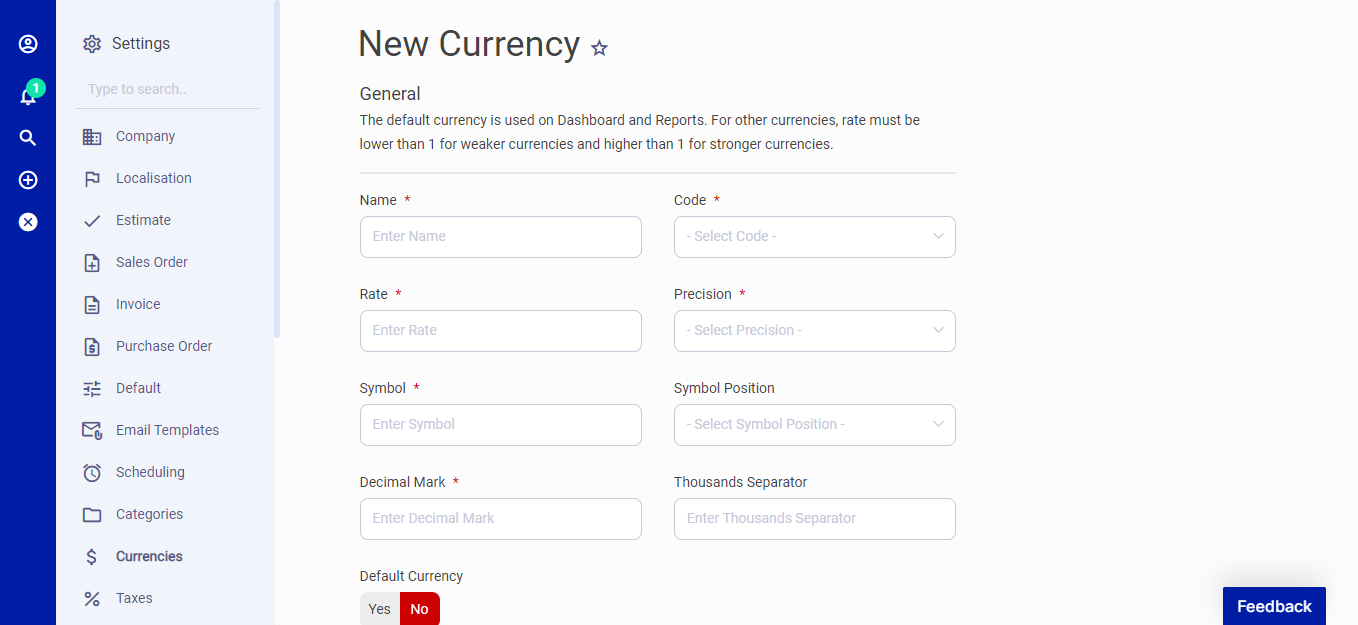 Figure.11 Currencies
Live Currency
The Accounting system allows you to populate the current exchange rates from various service providers like Fixer, the European Central Bank, and others. You can select the service provider and fetch the currency exchange rates automatically. The rates are always up to date.
Taxes
Tax is used to apply fees to invoices and bills for different tax classes. When creating an invoice or a bill, the Accounting system calculates taxes based on the type of tax.
You can name, select a tax, and enter the rate or the amount according to the type. For example, VAT or Sales Tax is a regular tax of a percentage that is calculated over the sales price and added to the bill.
The Accounting system calculates compounding, fixed amount, inclusive, and withholding tax, as well as the normal tax.
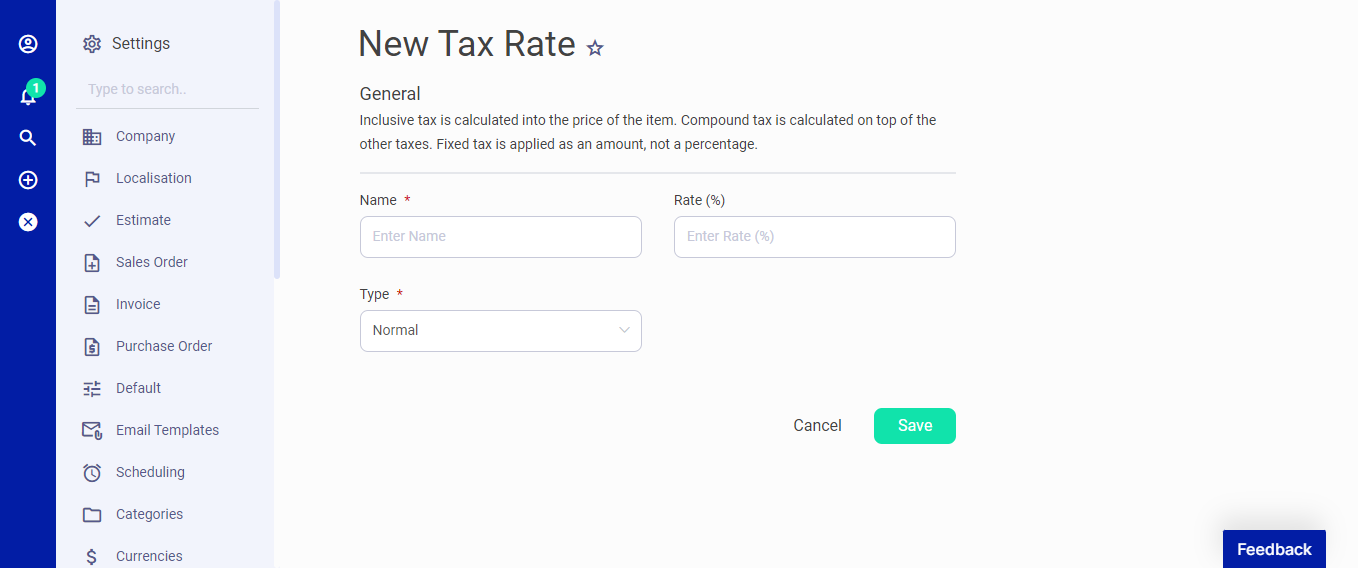 Figure.12 Taxes
Credit Note
The Credit Note settings page is located under the Settings menu. Set the defaults for formatting your Credit Note number prefix and number digits, select one of the templates for your Credit Notes.
- General: Set the defaults for formatting your Credit Note number prefix and number digits.
- Template: Select one of the templates for your Credit Notes.
- Defaults: Selecting defaults for Credit Notes will pre-populate titles, subheadings, notes, and footers. So you don't need to edit Credit Note each time to look more professional.
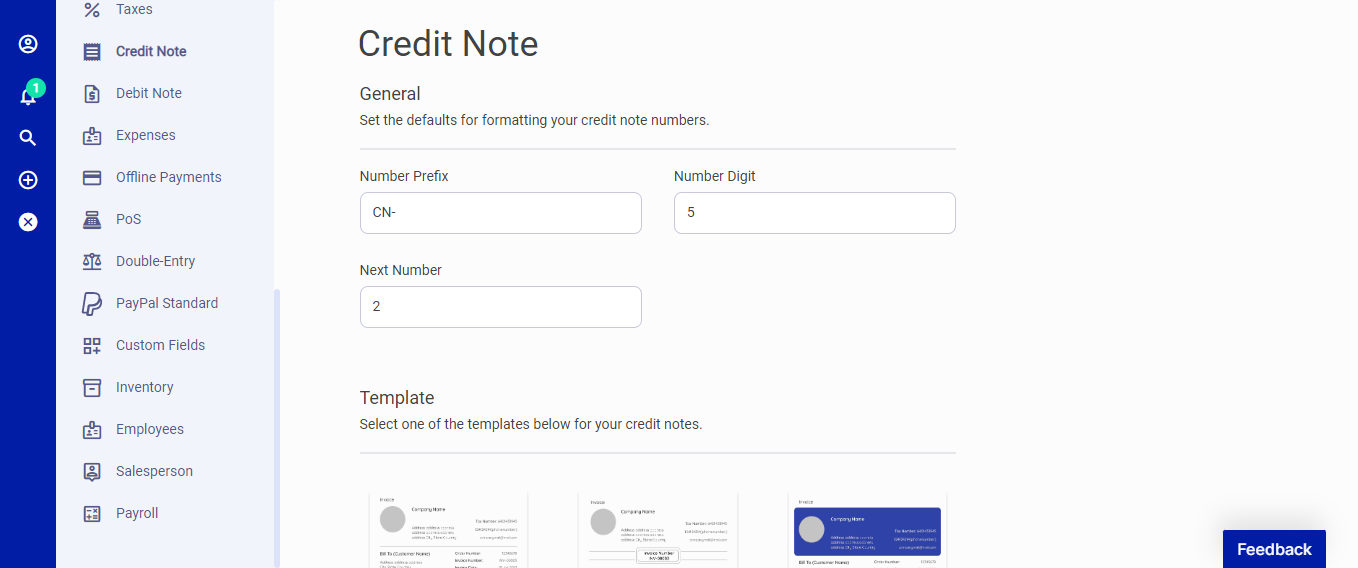 Figure.13 Credit Note
Debit Note
The Debit Note settings page is located under the Settings menu. Set the defaults for formatting your Debit Note number prefix and number digits.
- General: Set the defaults for formatting your Debit Note number prefix and number digits.
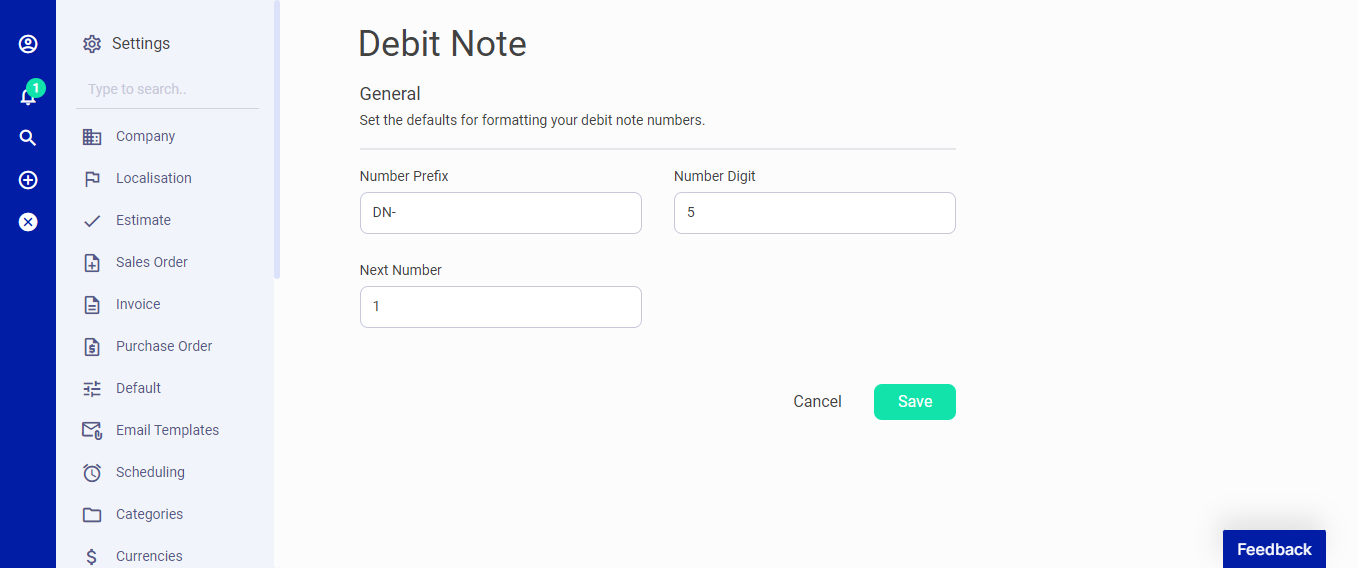 Figure.14 Debit Note
Expenses
The Expenses settings page is located under the Settings menu. Set the defaults for formatting your Expenses number prefix and number digits.
- General: Set the defaults for formatting your Expenses number prefix and number digits.
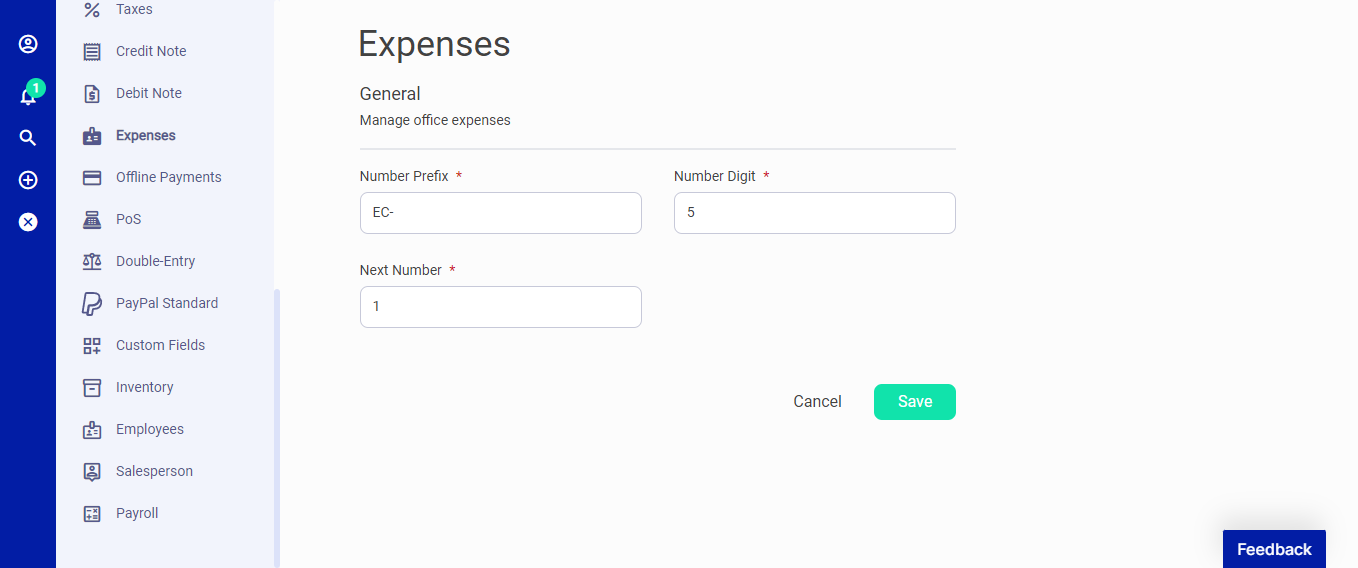 Figure.15 Expenses
Offline Payments
This payment method is defined by a user associated with either Cash or Bank Transfer as default. Admins generally use offline payments to categorize the method they receive payments. They can also be used to show offline payment details to customers. For example, you can create a Bank Transfer payment method and enter your bank account details so that your customer may transfer the invoice amount.
You can create a new offline payment method on this page, edit the current ones or delete them.
On the left section, you can create new payment methods as follows:
- Name: Payment method name.
- Order: The sorting order of the payment method.
- Description: The description for the the payment method.
- Show to the customer: You can enable this if you want this payment method to be available as an option to your customers.
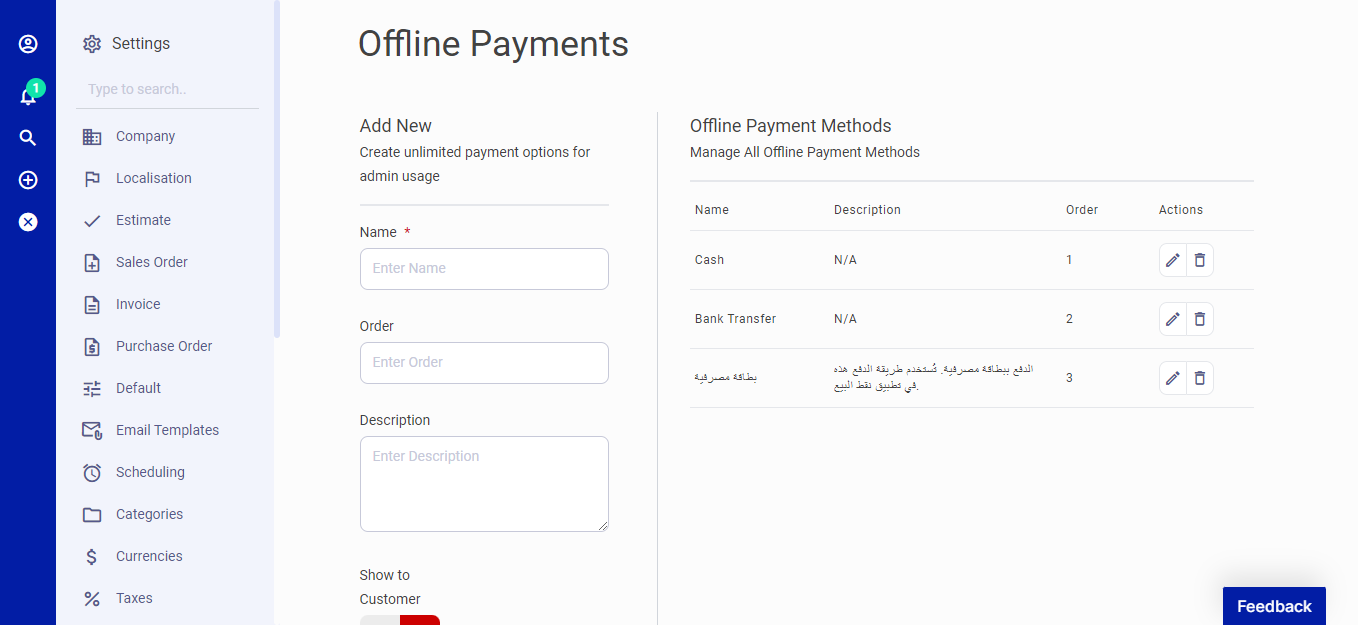 Figure.16 Offline Payments
POS
What if you could integrate your store directly with the Accounting system and easily keep track of your sales? With the new Point of Sale module, this is now possible.
Turn your the Accounting system into an effective POS. Automate your retail with the Point of Sale app and increase your revenue. The Point of Sale app offers the best features for you to manage your shop integrated with the Accounting system.
The following fields are found on the POS page:
- Prefix: added to each order's number before digits making the number look like ORD-00001.
- Number of digits: in an order's number. 5 digits will make an order number look like ORD-00199, and 6 digits will generate numbers like ORD-000345. Add as many digits as you need, but 5 should be enough in most cases.
- Next number: is used to set the number of the next order. It will be incremented automatically, but you can adjust it in case of deleted order or any other case.
- Account and payment method: for payments made by cash are used for income transactions for cash payments.
- Account and payment method: for payments made by card are used for income transactions for card payments.
- Guest customer: is a customer that is used in a payment transaction if you don't select a customer for an order.
- Sale category: is used in an income transaction created for payment.
- Change category: is used in an expense transaction created for a change.
- Printer paper size: allows you to adjust a receipt's size to your printer's paper width.
- Paper cutter usage: switch if enabled, will make a receipt having a page break below all the content. Most receipt printers use the page break as a command to cut the paper.
- Company logo printing: switch if enabled, will make a receipt having a company's logo at the top.
- Barcode scanner usage: switch controls the search field behavior. When it is set to "Yes", then the search field will automatically get focus, allowing you to scan goods sequentially, one by one.
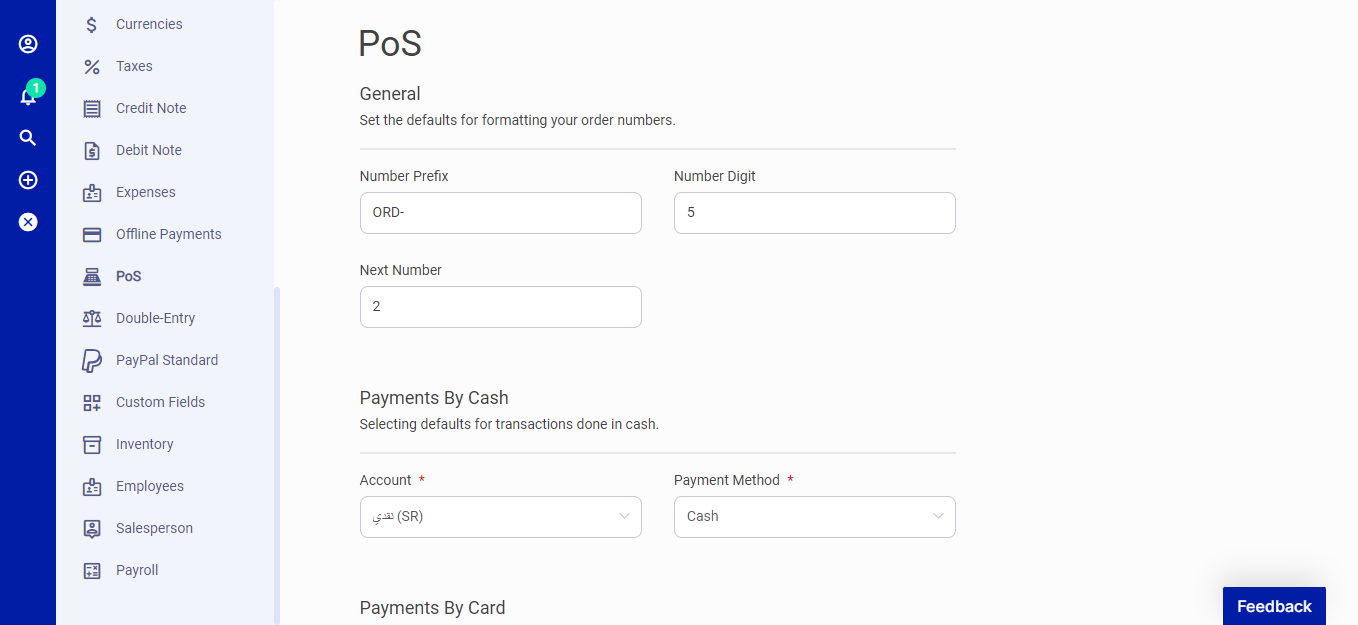 Figure.17 PoS
Double Entry
Double-Entry accounting is a practice that helps minimize errors and increases the chance that your books balance. If you're an accountant, thanks to the multi-company feature of the Accounting system, you can manage the financials of unlimited companies.
The following fields are found on the Double Entry page:
- Default Chart of Accounts: Settings for the Chart of Accounts.
- Default Types: Settings for types.
- Manual Journal Entry: Settings for the journal entry.
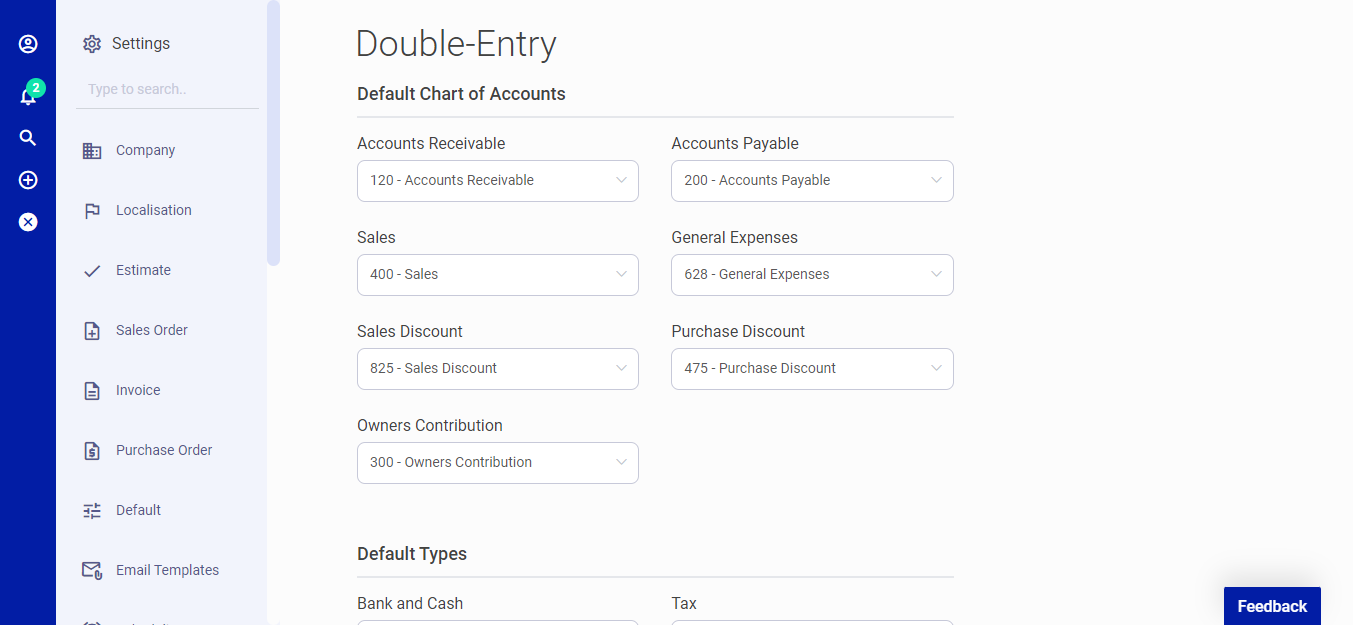 Figure.18 Double Entry
Custom Fields
The custom fields allows you to add unlimited fields anywhere. The following fields are found on the Custom Fields page:
- Name: Field name.
- Code: A unique word to be used by the system to map the field with other pages.
- Type: The type of the field. There are 8 different field types at the moment:
- Text
- Text Area
- Select Box
- Checkbox
- Radio Button
- Date
- Time
- Date & Time
- Validation: You can enter any validation rule available here. For example, integer if you want to be able to enter only numbers.
- Value: The default value or values list based on the selected type.
- Location: In which page you want to show the field.
- Sort & Position: Before/After which field you want to show the custom field.
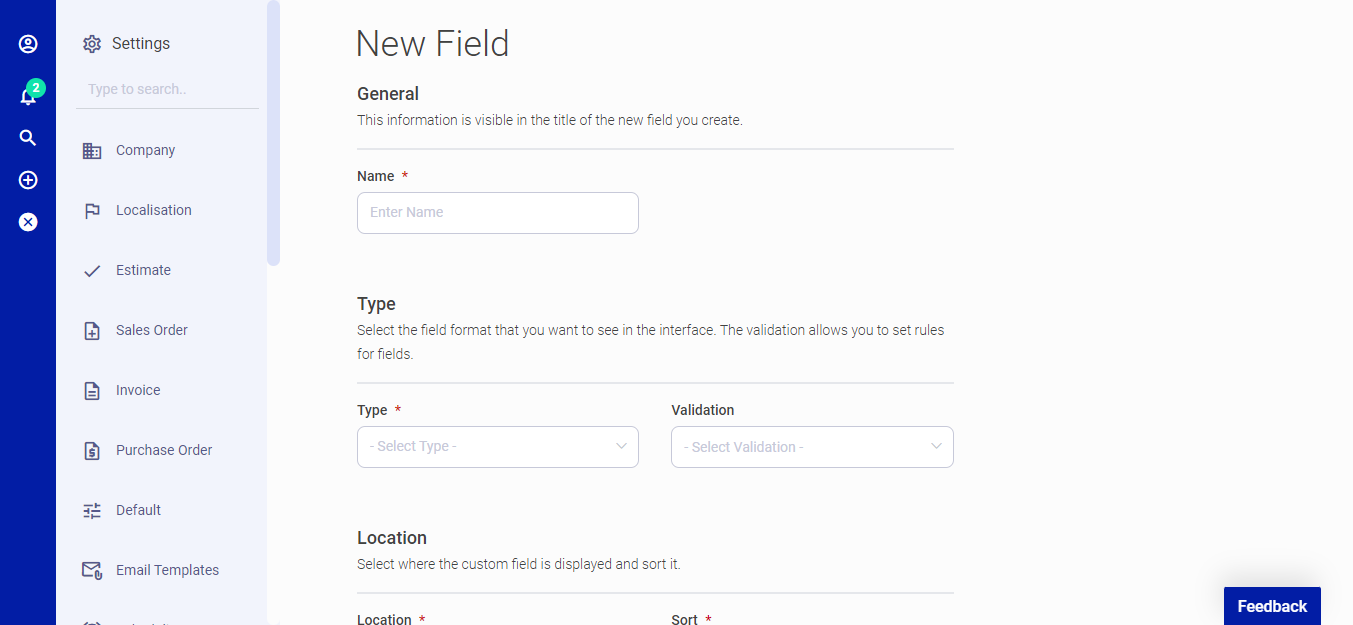 Figure.20 Custom Fields
Inventory
Inventory allows you to do advanced inventory management to track your company's stock easily. It is one of the most needed applications for managing all products, from raw materials to finished products and running warehouse processes. With this feature, you can easily monitor the stock status, run your supply chains smoothly, and thus significantly reduce the risks such as excess stock or shortage.
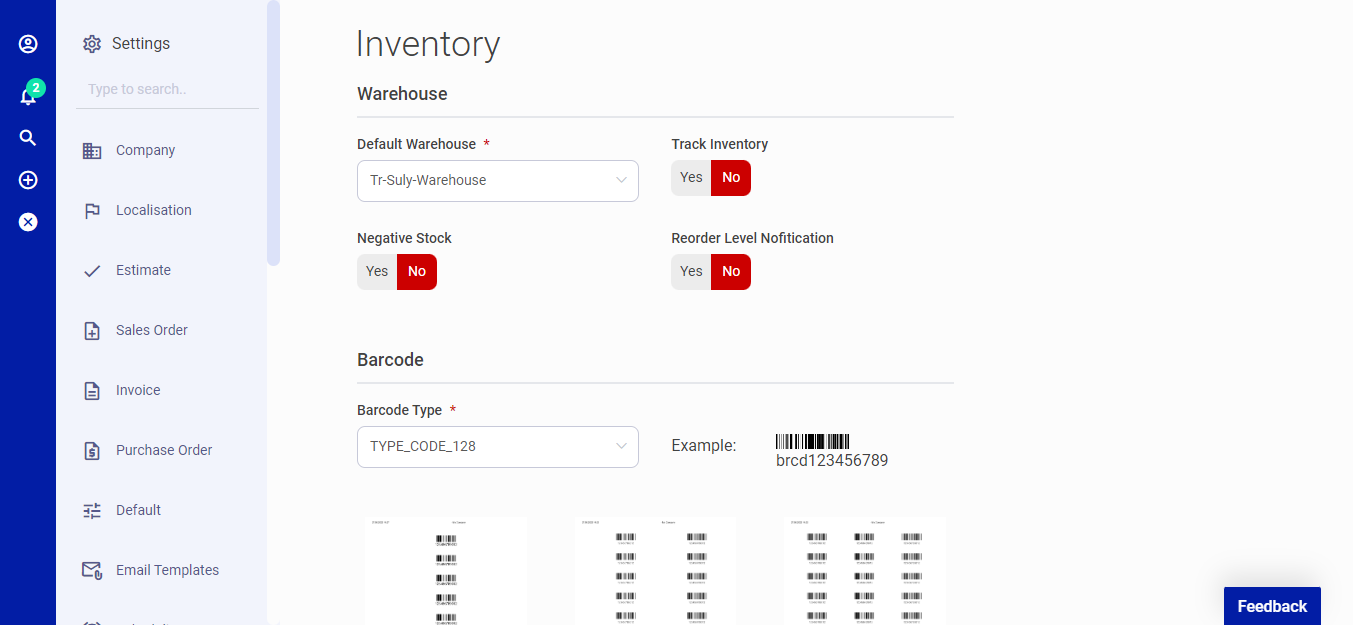 Figure.21 Inventory
Employee
This feature helps you manage employees and keep all their personal details in one place. The Employee is a vital part of the Accounting System. It is beneficial to record all the employee details under one roof. The following fields are found on the Employee page:
- General: The role you selected determines the permissions that the employee will have. Select the role that you want to assign to the employee who can log in.
- Departments: You can create different departments from here.
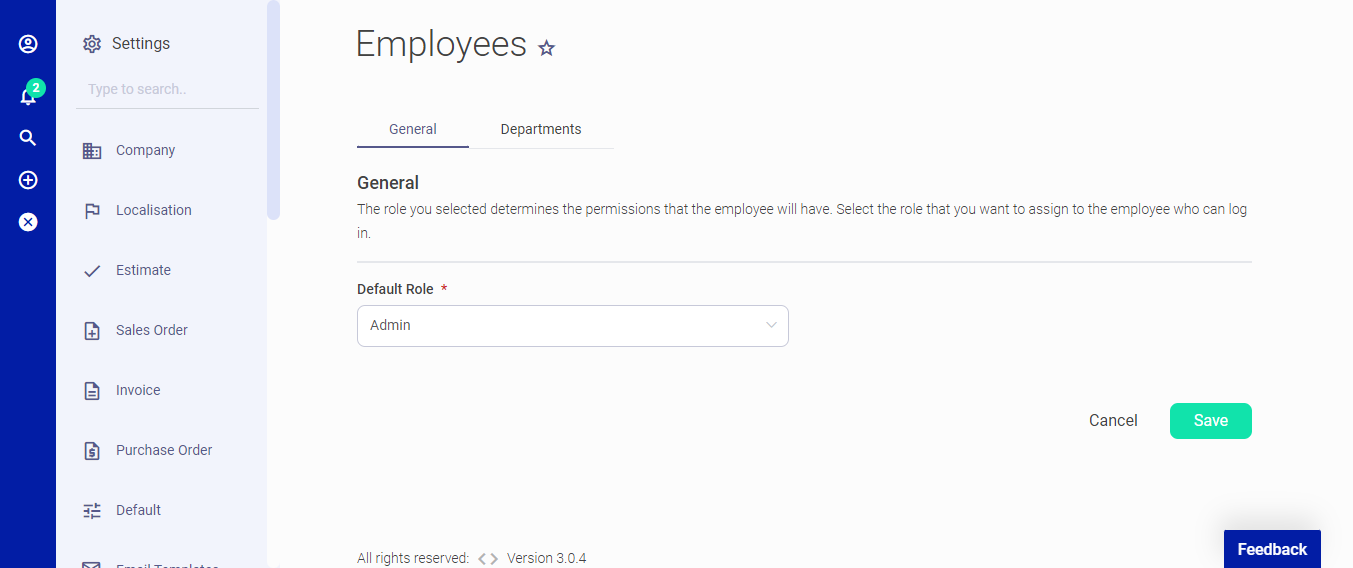 Figure.22 Employee
Salesperson
The following fields are found on the Employee page:
- General: Follow the sales made by the salesperson from the reports
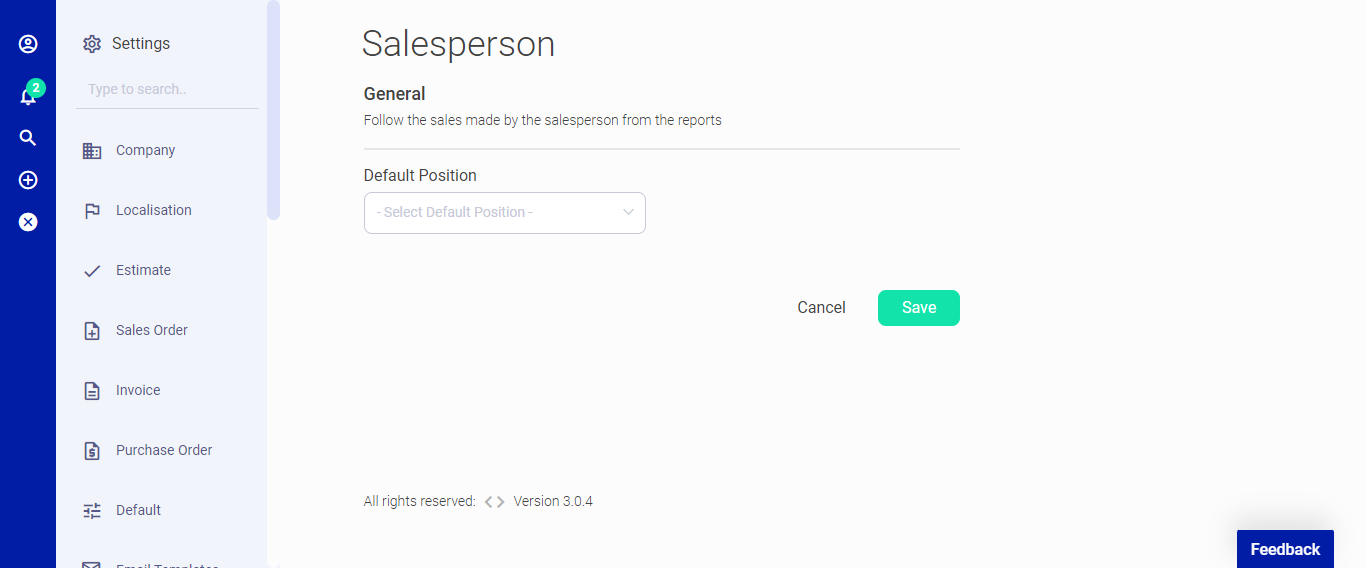 Figure.23 Salesperson
Payroll
The payroll app allows you to create dynamic weekly, bi-weekly or monthly pay calendars to pay your employees. You can set basic pay or salary, including fixed amount payments (allowance or deduction) for your employees.
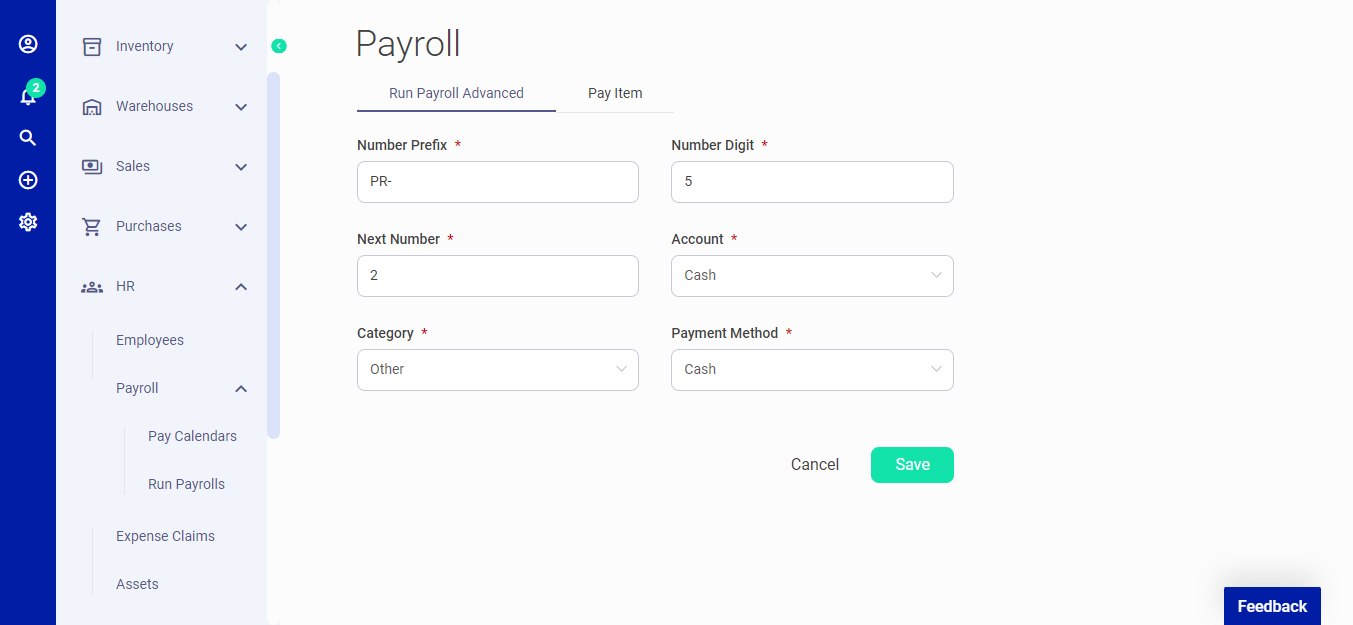 Figure.24 Payroll