Employees
This app helps you manage employees and keep all their personal details in one place
The Employee is a vital part of the Accounting System. It is beneficial to record all the employee details under one roof. Under the HR section, you can see a list of all Employees. You can view the list of all Employee under the HR section. You can add, edit, delete, export, or import a Employee.
At the top of the Employee page, you'll find the New Employee button. The New Employee option allows you to create new Employee. You can add Employee by selecting the New Employee button or clicking on the More option to import a list of Employee using the XLS or XLSX sheet format.
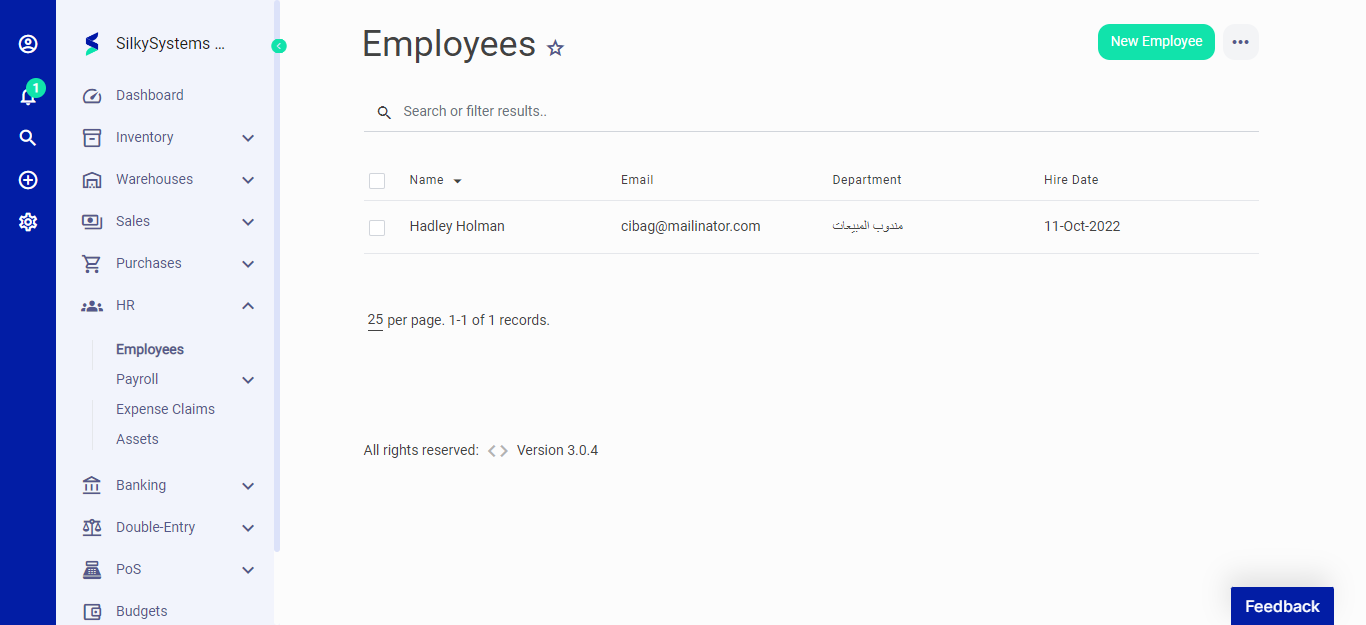 Figure.01 Employee
The following fields are displayed when creating a New Employee:
- Name: Name of the Employee.
- Email: Email of the Employee.
- Birth Day: Date of birth of the Employee
- Phone: Phone number of the Employee
- Department: Department of the Employee
- Invite to Client Portal: Check this if you want to give access to the client portal to the Employee
- Address: Address of the Employee.
- Salary: Salary of the Employee.
- Tax Number: Tax number of the Employee.
- Bank Account Number: Bank Account Number of the Employee.
- Hire Date: The date when you hired the employee.
- Expenses: Expenses of the Employee.
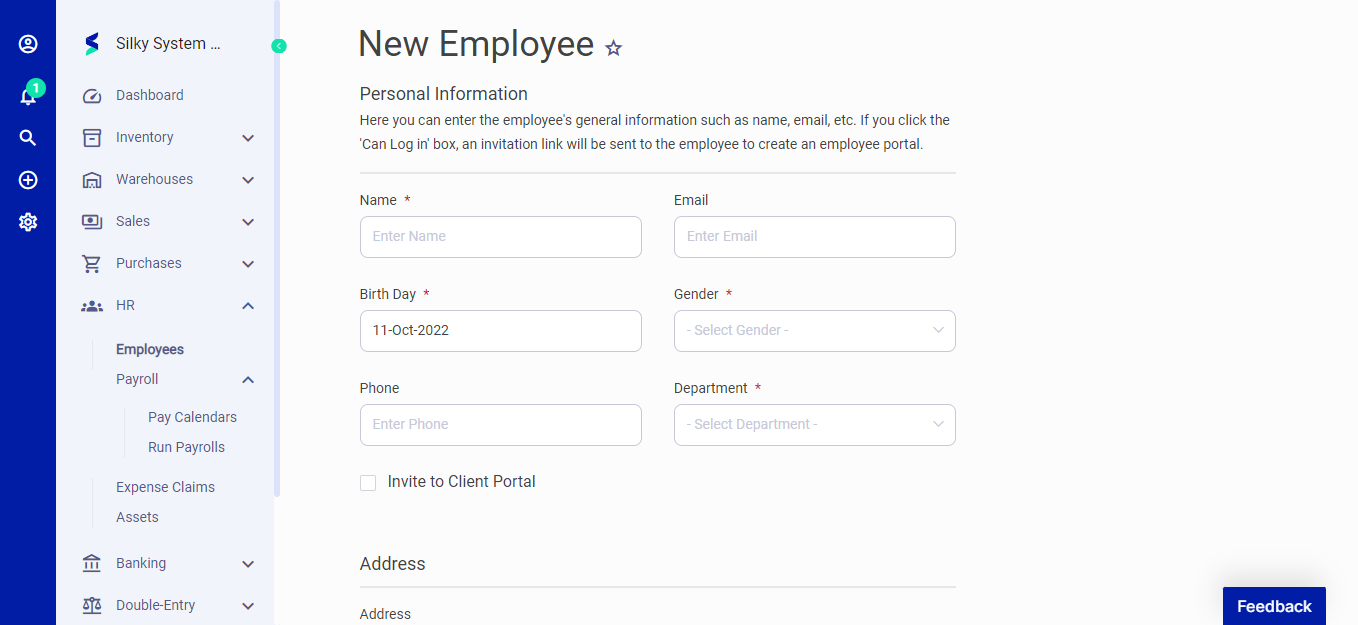 Figure.02 Employee
After creating a new Employee, you can see a list of your Employee on the Employee home page. A mouse hover on a listed Employee reveals the options to show, edit, duplicate, print, download, send or delete.
Click on any employee to view its details.
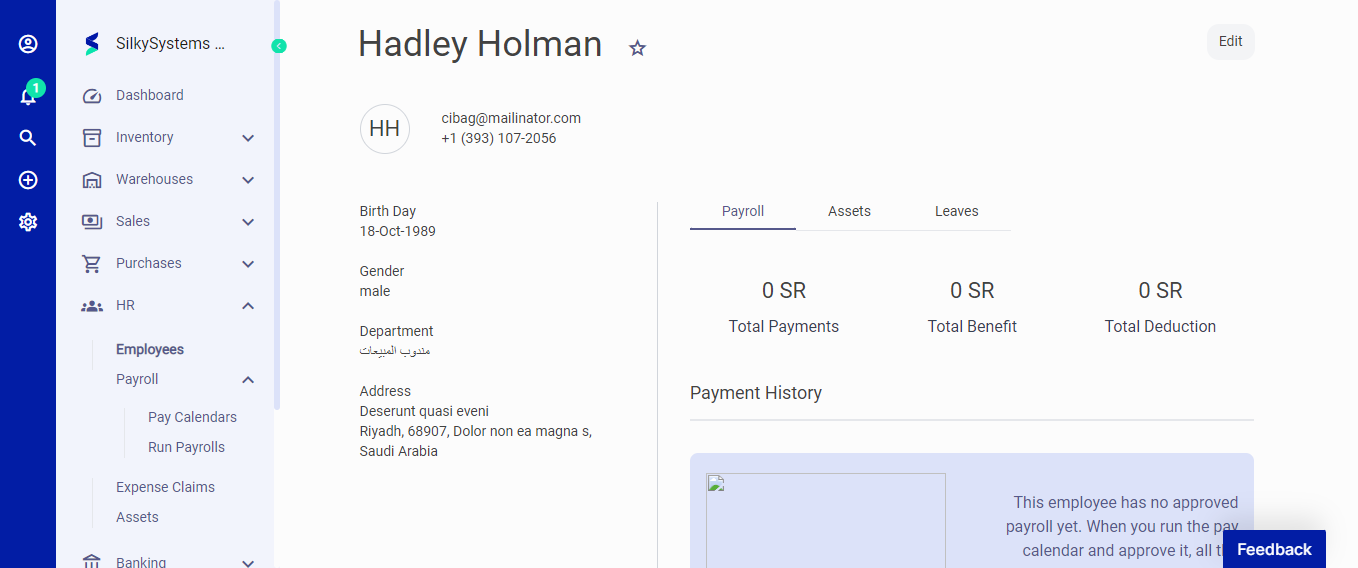 Figure.03 Employee