Purchase Orders
The Purchase Order is a vital part of the Accounting System. It is beneficial to record order details for all purchases. Under the Purchases section, you can see a list of all Purchase Orders. You can view the list of all Purchase Order under the Purchases section. You can add, edit, delete, export, or import a Purchase Order.
At the top of the Purchase Order page, you'll find the New Purchase Order button. The New Purchase Order option allows you to create new Purchase Order. You can add Purchase Order by selecting the New Purchase Order button or clicking on the More option to import a list of Purchase Order using the XLS or XLSX sheet format.
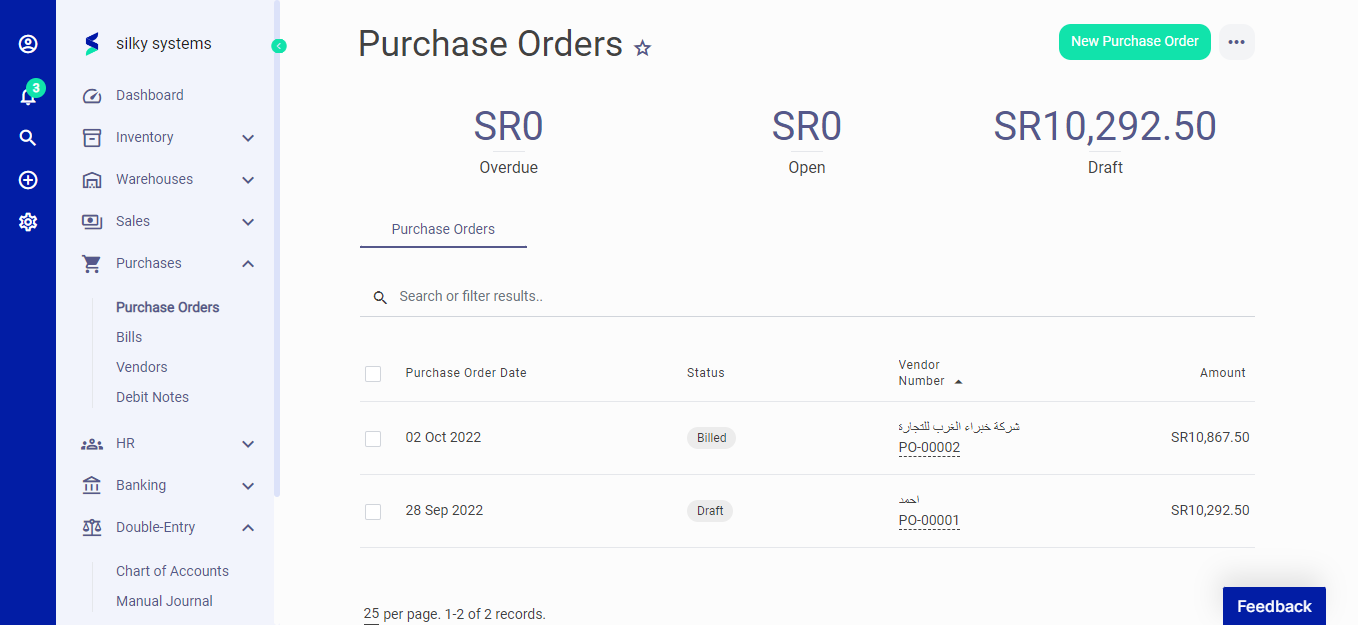 Figure.01 Purchase Order
The following fields are displayed when creating a New Purchase Order:
- Add A Vendor: Customer name.
- Purchase Order Date: Date of Purchase Order
- Purchase Order Number: Auto generated Purchase Order number.
- Expected Delivery Date: Estimated date of delivery.
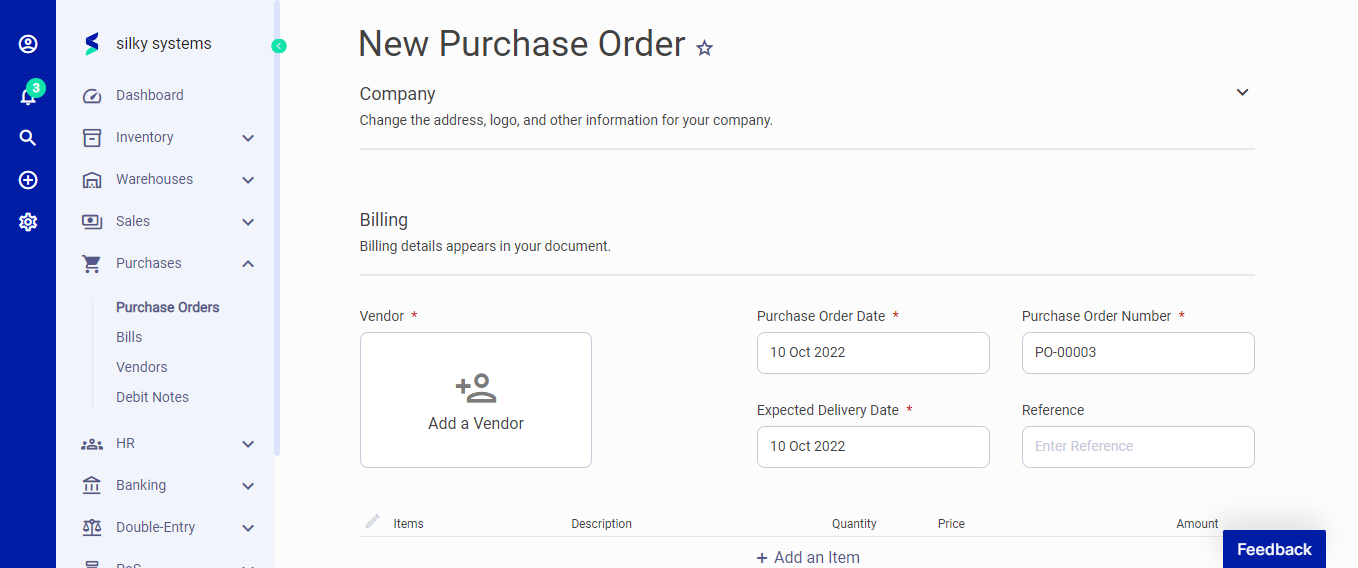 Figure.02 Purchase Order
Click on add item to start adding the items and their details such as description, quantity, price, and discount. In the Advanced section, you can attach a document, fill in extra information in the footer and assign the category for the Purchase Order.
After creating a new Purchase Order, you can see a list of your Purchase Order on the Purchase Order home page. A mouse hover on a listed Purchase Order reveals the options to show, edit, duplicate, print, download, send or delete.
Click on send options to mark the status as Send, confirm or convert to Invoice.
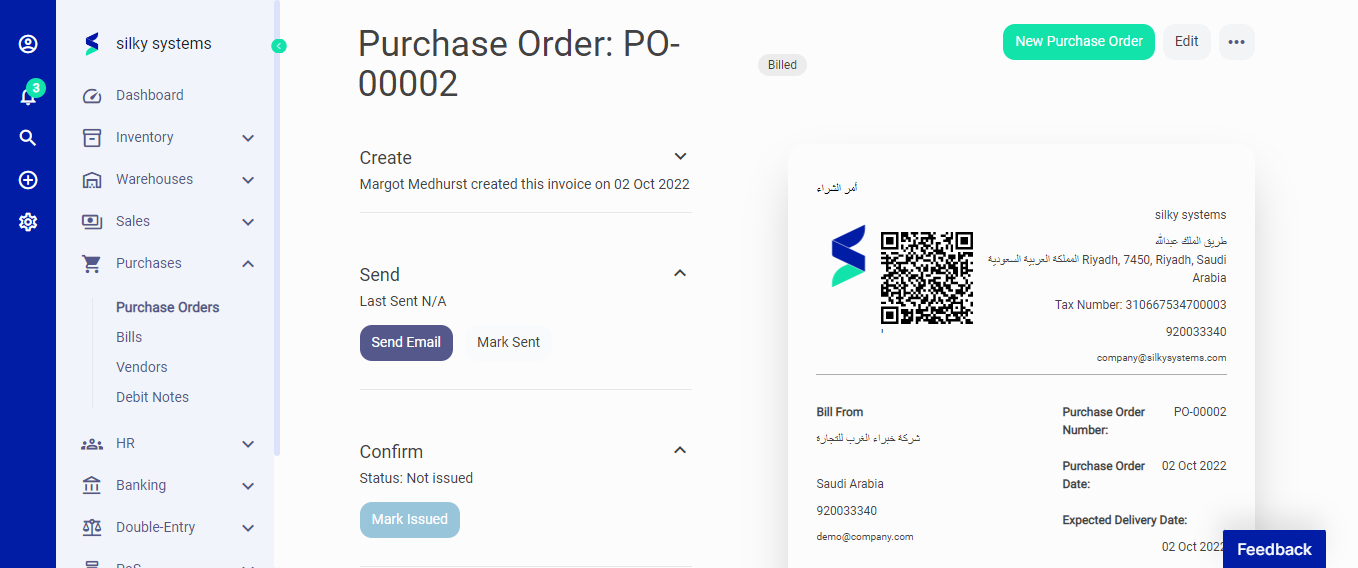 Figure.03 Purchase Order