Debit Notes
Debit notes are typically issued from a customer to their seller to indicate or request a return of funds due to incorrect or damaged goods received, purchase cancellation, or other specified circumstances. Under the Purchases section, you can see a list of all Debit Notes. You can view the list of all Debit Note under the Purchases section. You can add, edit, delete, or export a Debit Note.
At the top of the Debit Note page, you'll find the New Debit Note button. The New Debit Note option allows you to create new Debit Note. You can add Debit Note by selecting the New Debit Note button.
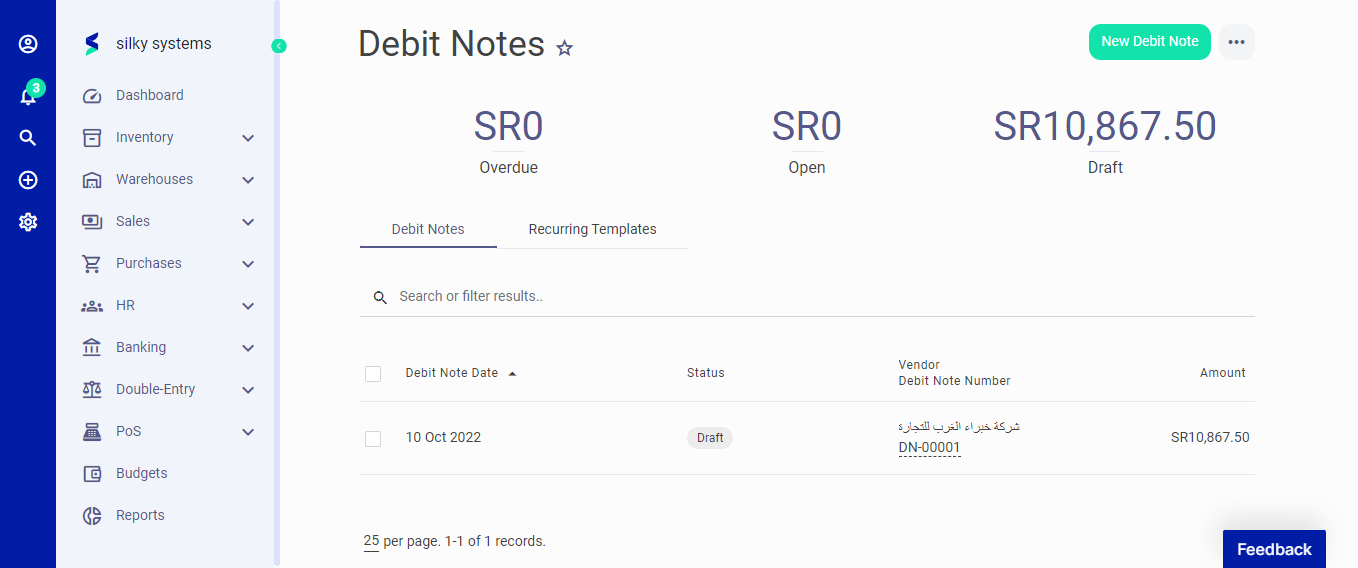 Figure.01 Debit Note
The following fields are displayed when creating a New Debit Note:
- Vendor: To whom you pay the Debit Note.
- Debit Note Date: Date when the Debit Note is issued.
- Debit Note Number: This is assigned by default, but you can edit it..
- Items: The list of all items assigned to the Debit Note. You can add multiple items from the Items page.
- Description: This gives more information about the item.
- Quantity: The number of product or service you are purchasing.
- Price: The purchase price of the item. It will be updated automatically but you have the opportunity to edit it.
- Tax: Add applicable Tax Rates. You can select multiple taxes. See the Settings > Tax Rates documentation for more details.
- Total: This will be automatically calculated automatically the total price of the item according to the item quantity, discount and tax. It is not an editable field. In order to change the total amount, you should change the item price, or quantity or applied discount.
- Notes: You can add a custom note to the Debit Note.
- Category: Category of the invoice to be used in reports.
- Attachment: You can attach a file related to that invoice
Figure.02 Debit Note
Click on add item to start adding the items and their details such as description, quantity, price, and discount. In the Advanced section, you can attach a document, fill in extra information in the footer and assign the category for the Debit Note.
After creating a new Debit Note, you can see a list of your Debit Note on the Debit Note home page. A mouse hover on a listed Debit Note reveals the options to show, edit, duplicate, print, download, send or delete.
Click on send options to mark the status as Send, confirm or convert to Invoice.
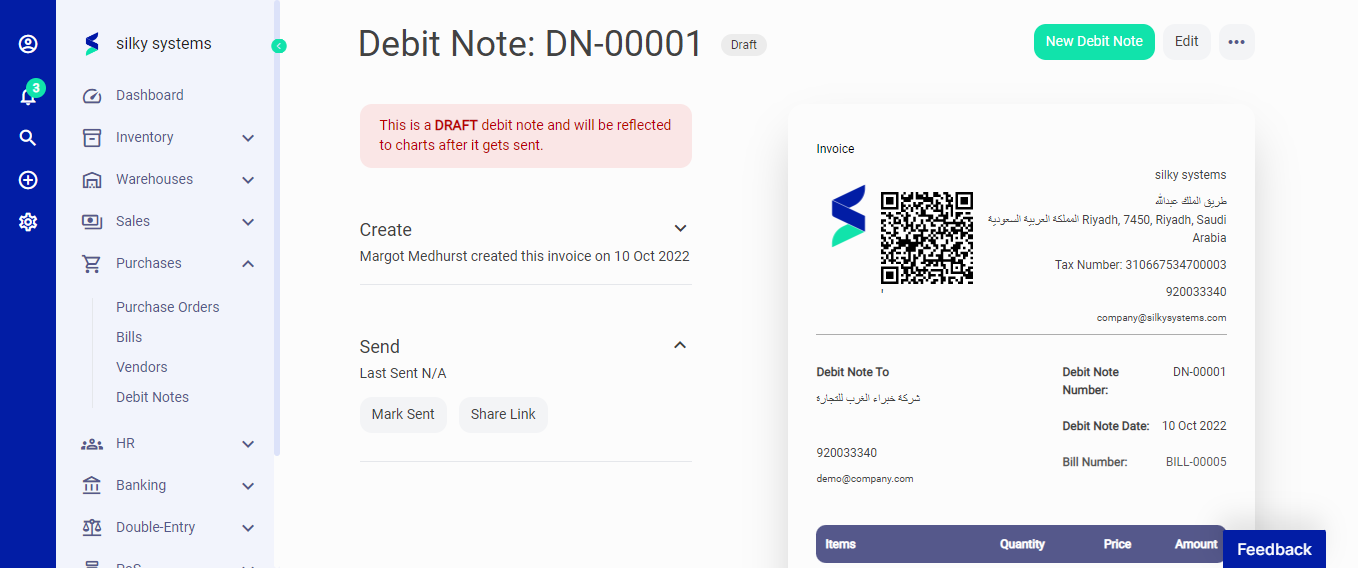 Figure.03 Debit Note