Transactions
Transactions keep records of the income and expenses of your business. This page shows up all the transactions made for each account. You can easily see the transaction date, type, account, contact, and amount. All transactions are added under income and expense types.
You can connect transactions with invoices or bills. So documents you have recorded match your income and expense records. At the top right of the Transactions page, you can add New Income or New Expense by clicking on the buttons. Import a list of transactions using the XLS or XLSX sheet format.
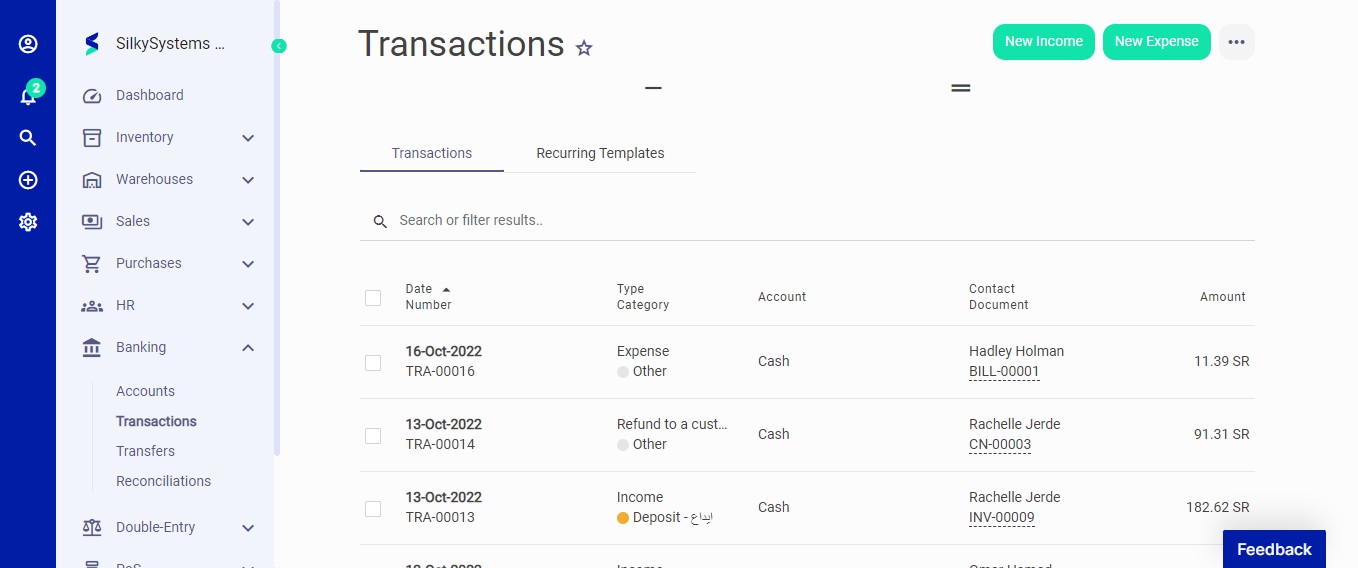 Figure.01 Accounts
Income is one of the two sales types in the Accounting system and allows you to record revenue from a transaction without an invoice. All your business income is listed on the Transactions page. You can add an income by clicking the New Income button at the top of the Transactions page and filling out the required fields.
On the New Income page, the following fields are displayed:
- Date: Enter a date for the transaction
- Payment method: Choose the payment method
- Account: Select the account
- Chart of Accounts: Select from your Chart of Account
- Amount: Enter the income amount
- Description: Give details of the transaction
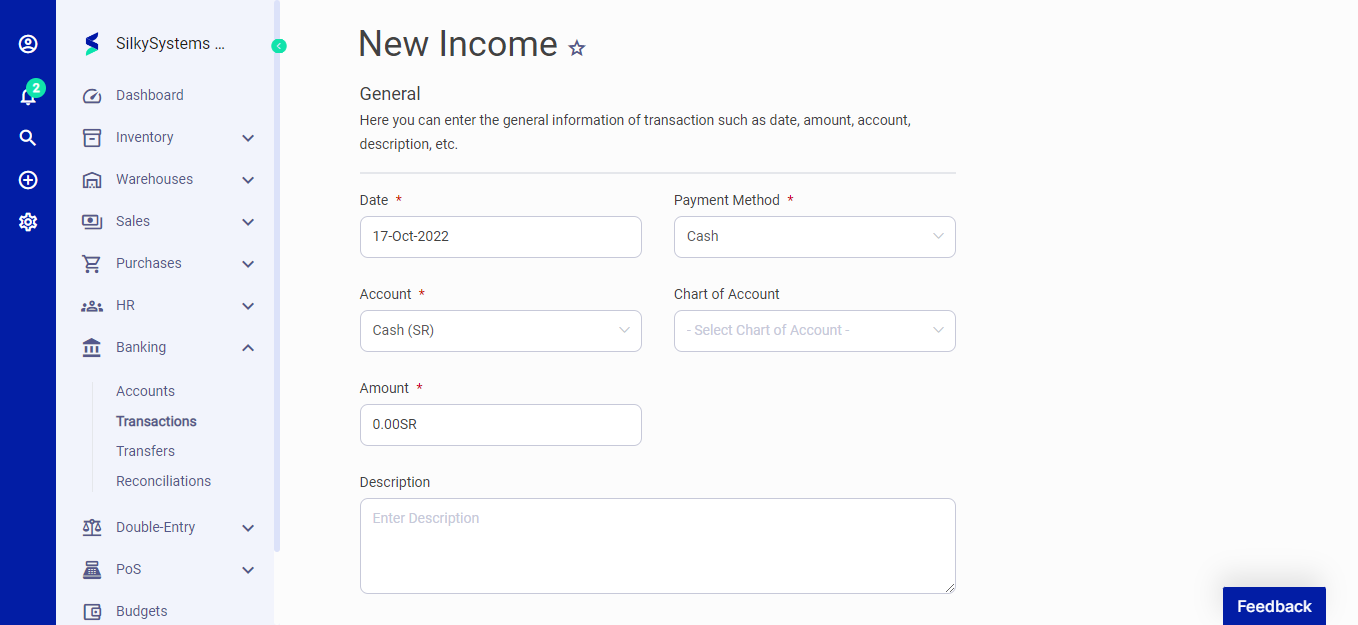 Figure.02 Accounts
Similarly you can add an Expense by clicking the New Expense button at the top of the Transactions page and filling out the required fields.
On the New Expense page, the following fields are displayed:
- Date: Enter a date for the transaction
- Payment method: Choose the payment method
- Account: Select the account
- Chart of Accounts: Select from your Chart of Account
- Amount: Enter the Expense amount
- Description: Give details of the transaction
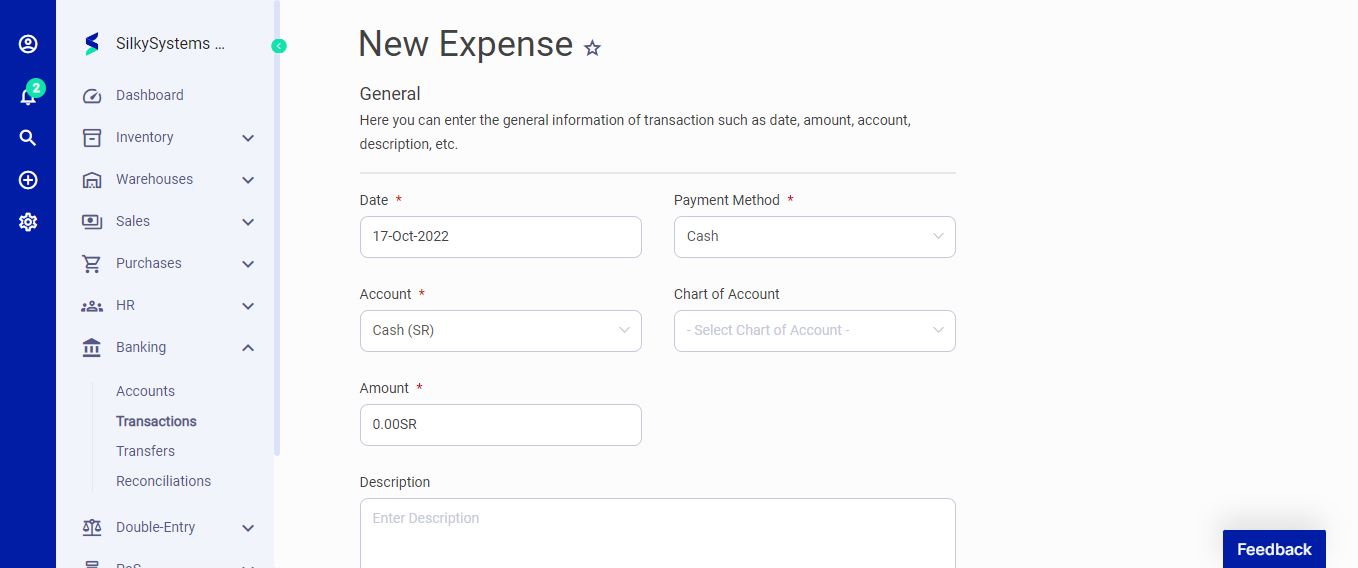 Figure.02 Accounts
After creating a new Transaction, you can see a list of your Transaction on the Transaction home page. A mouse hover on a listed Transaction reveals the options to show, edit, duplicate, print, download, send or delete. Click on any Transaction to view its details.
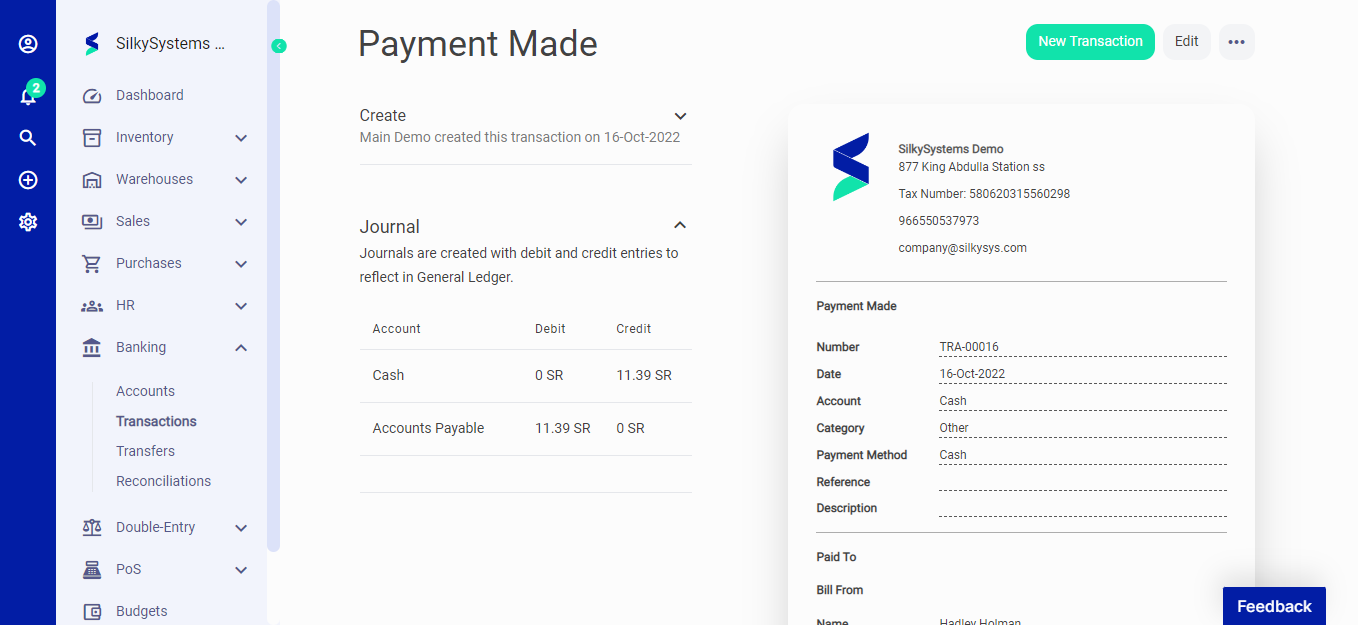 Figure.03 Transaction