Fulfillments
Fulfillment is a sequential process in which the sale order items have to be picked up from the shelves, packed and hand over for shipping. You can view the list of all Fulfillment orders under the Warehouse section. You can add, edit, delete, or prepare Fulfillments.
At the top of the Fulfillments page, you'll find the New Fulfillment button. The New Fulfillments option allows you to create new Fulfillments.
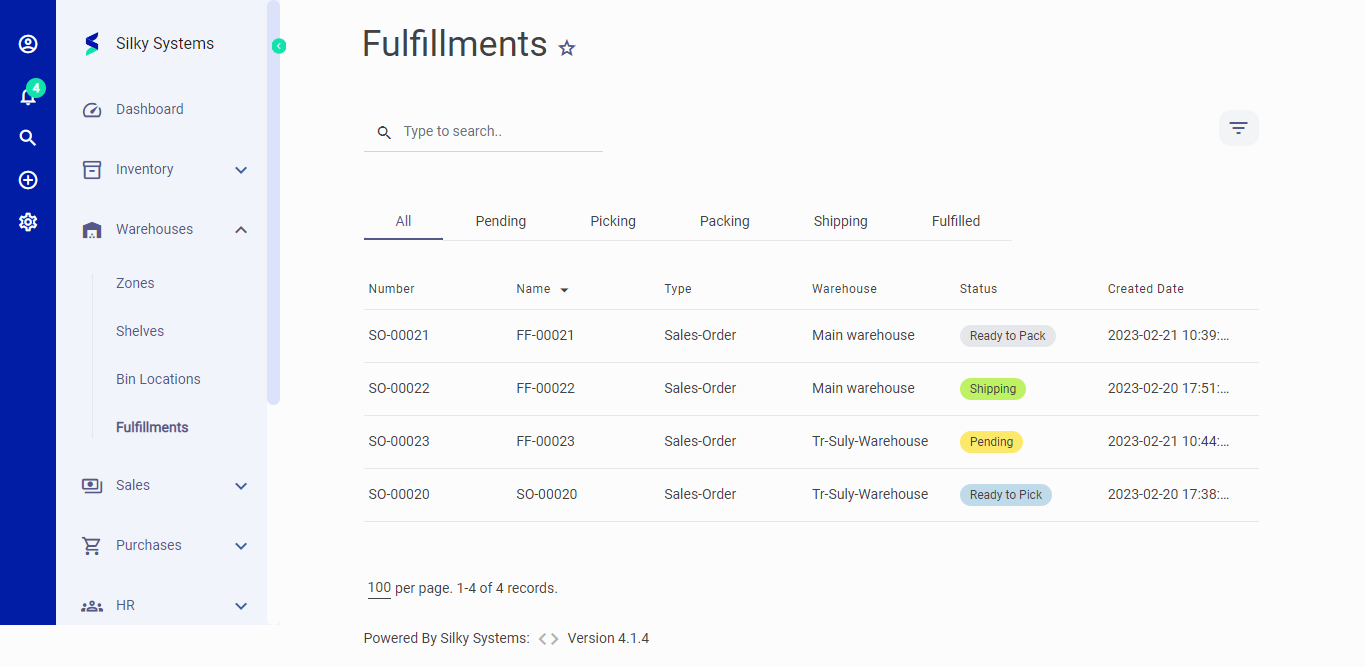 Figure.01 Fulfillments
Follow the steps below to create a Fulfillment order.
- Go to Sales --> Sales Order
- Click on New Sales Order, fill in the required details and click save.
- If you want to create the fulfillment order for an existing sales order then click on the view icon for the required sales order.
- In the view page, scroll down to the Fulfillments tab.
There are two ways to create a Fulfillment: Direct Fulfillment and Pick Pack Ship
Pick Pack Ship
The Pick Pack Ship is a sequential method to create a Fulfillment order. Firstly the sales order is assigned to be picked then it is transferred to be packed and then finally it is shipped to the customer. Follow the steps below to create the Fulfillment order.
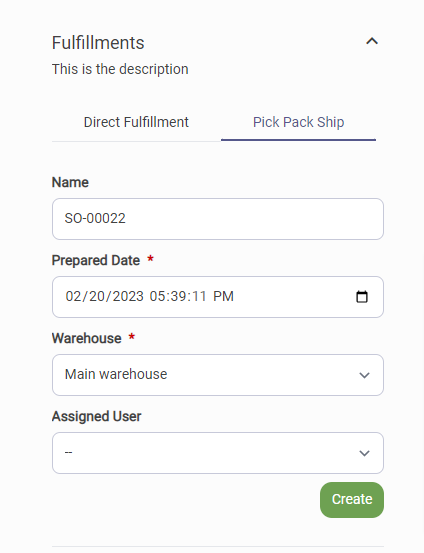 Figure.02 Fulfillments
Click on the Pick Pack Ship tab and fill in the required details.
- Name: Name of the Fulfillment order.
- Prepared Date: The date by which the order has to be prepared.
- Warehouse: Assigned warehouse.
- Assigned User: The user responsible to fulfill the order.
Click Create.
Picking Order
- Go to Warehouses --> Fulfillments. Here you can see the Fulfillment order in Pending status.
- Hover over the order and click on Generate Picklist to create picking order.
- Assign the user and click save.
- Click on Start Picking to start picking the items. You can scan the barcode or increase the Picked quantity manually.
- Click Save
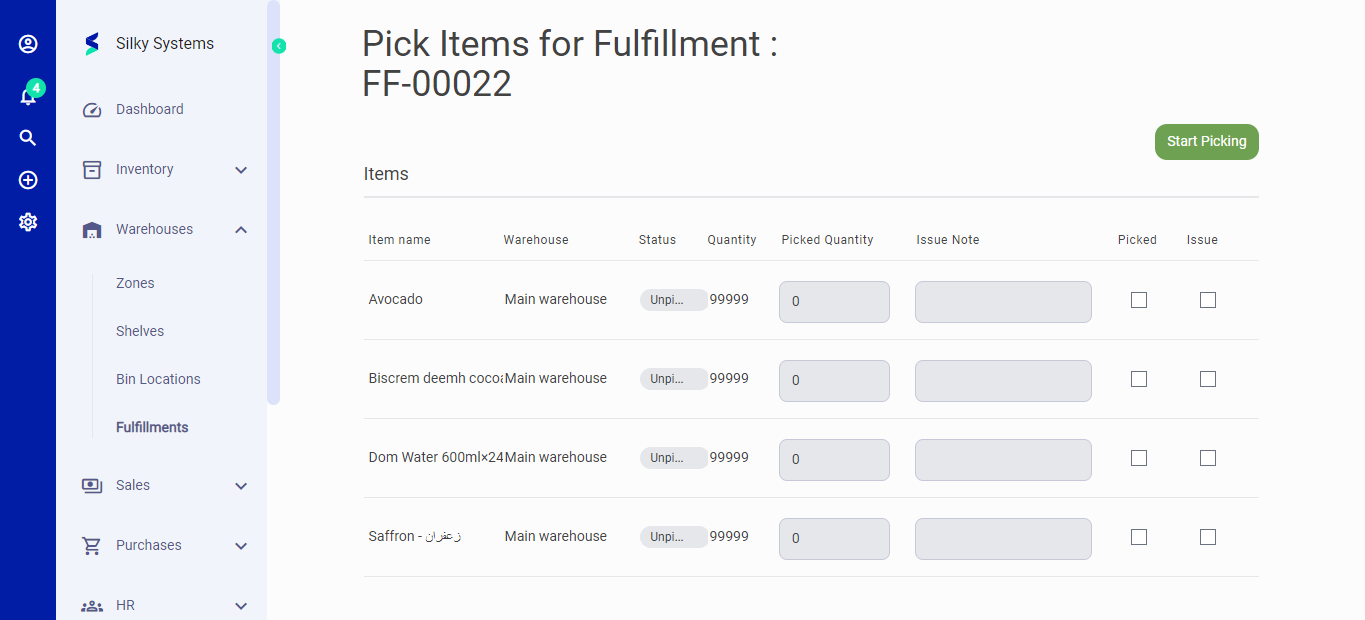 Figure.03 Fulfillments
Packing Order
- The next step is to create a Packing order. Go to Warehouses --> Fulfillments and hover over the order and click on Start Packing to create packing order.
- Click on Start Packing to start Packing the items.
- Fill in the required details such as Name, UOM (Unit of Measurement), height, width, length, weight and the packed quantity. Checked Pack when you are done.
- Additionally you can create more then one packing items to cover the total quantity of items. Click Save when you are done
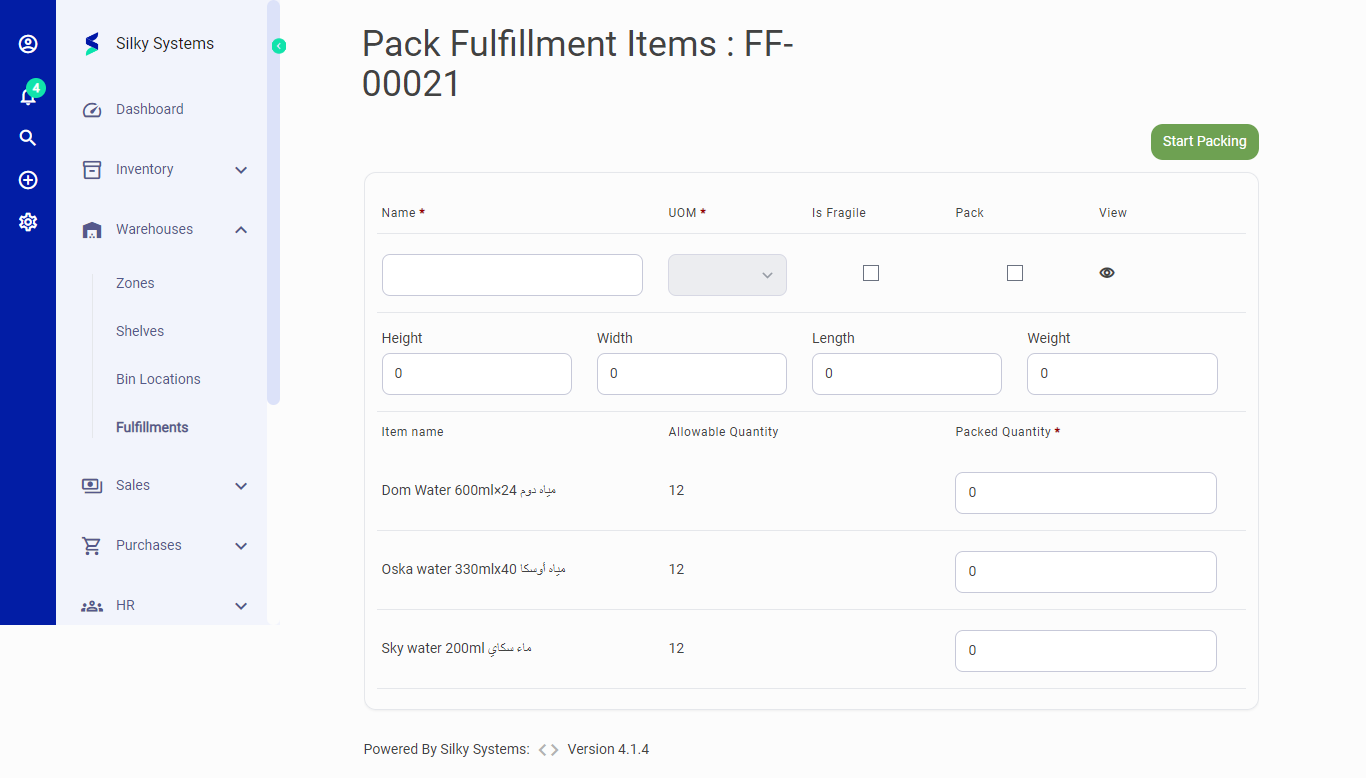 Figure.04 Fulfillments
Shipping Order
- The next step is to create a Shipping order. Go to Warehouses --> Fulfillments and hover over the order and click on Start Shipping to create Shipping order.
- Click on Start Shipping to start Shipping the items.
- Select the Delivery Type and click save.
- Finally on the Fulfillments page, hover over the order and click on Fulfilled to complete the shipping process. Once the order is filled, it can not be cancelled.
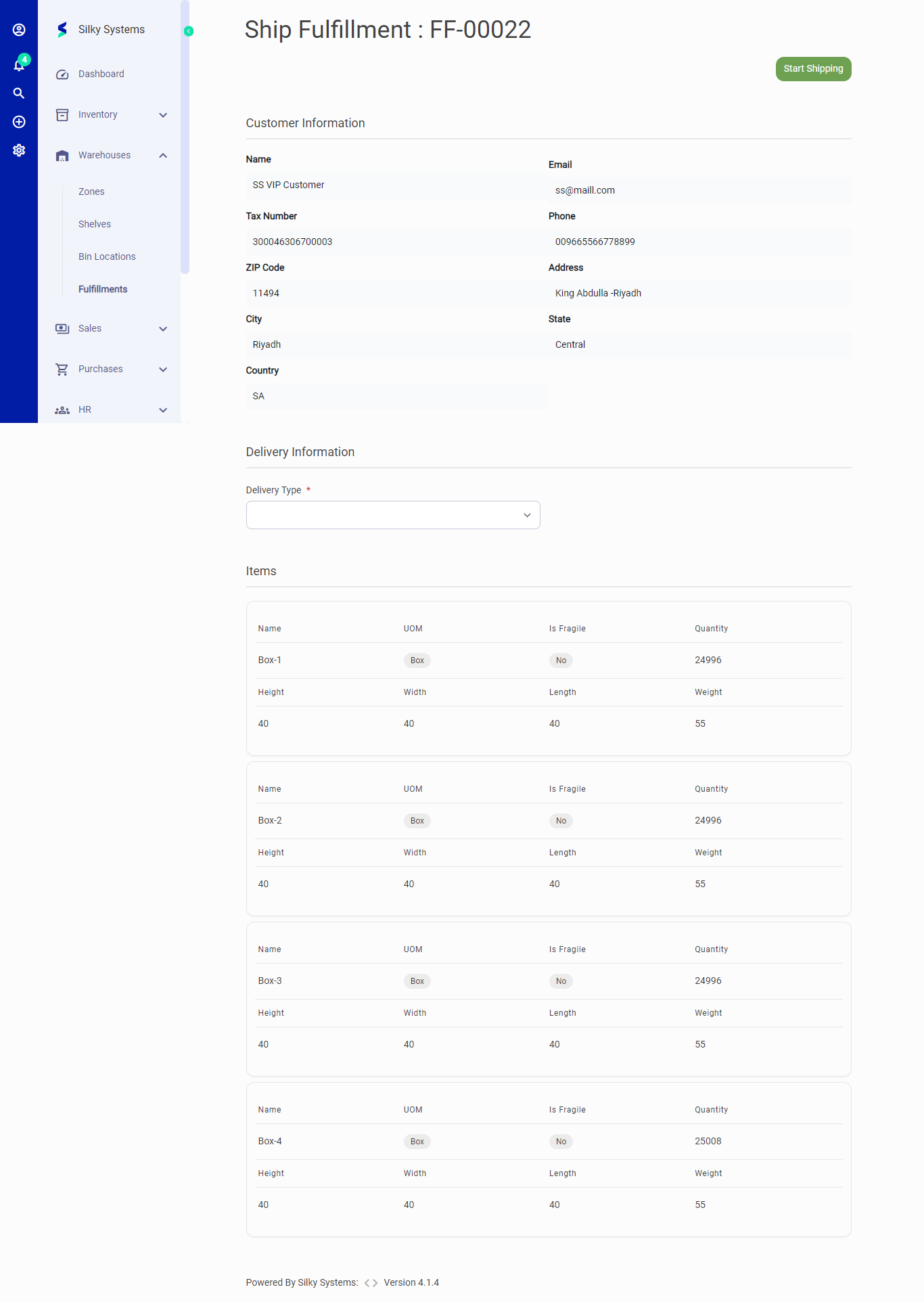 Figure.05 Fulfillments
Direct Fulfillment
The Direct Fulfillment is a quick method to create a fulfillment without having to go through the sequential process of Pick Pack and Ship. It contains all the steps of Pick Pack Ship in one page.
- Click on the Direct Fulfillment tab and click Create Fulfillment.
- Fill in the required details such Name, Warehouse, Delivery Type and Pack Units.
- Click Save when you are done. The order is directly marked as Fulfilled.
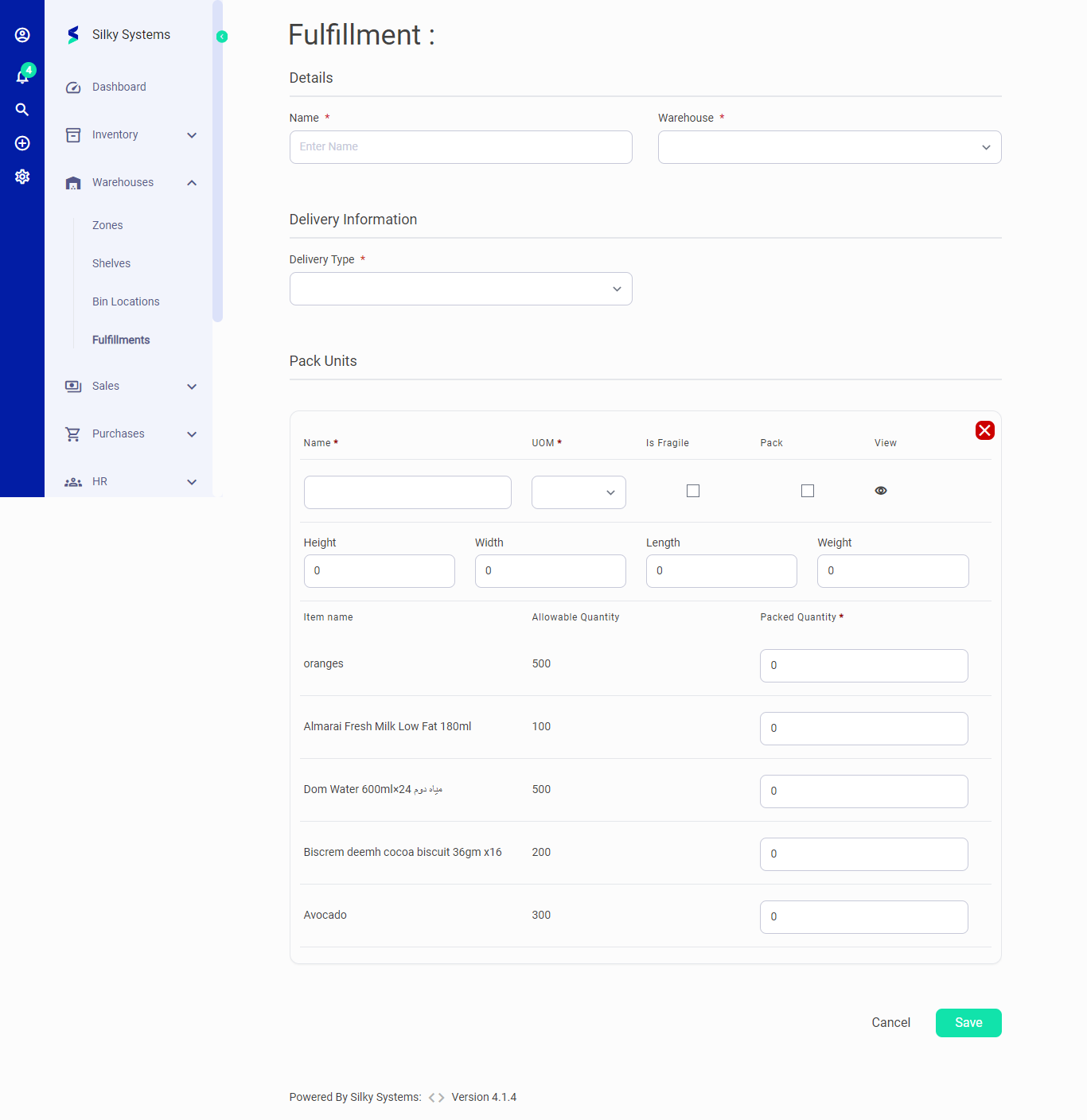 Figure.06 Fulfillments
You can click on the any Fulfillment order to view its details.
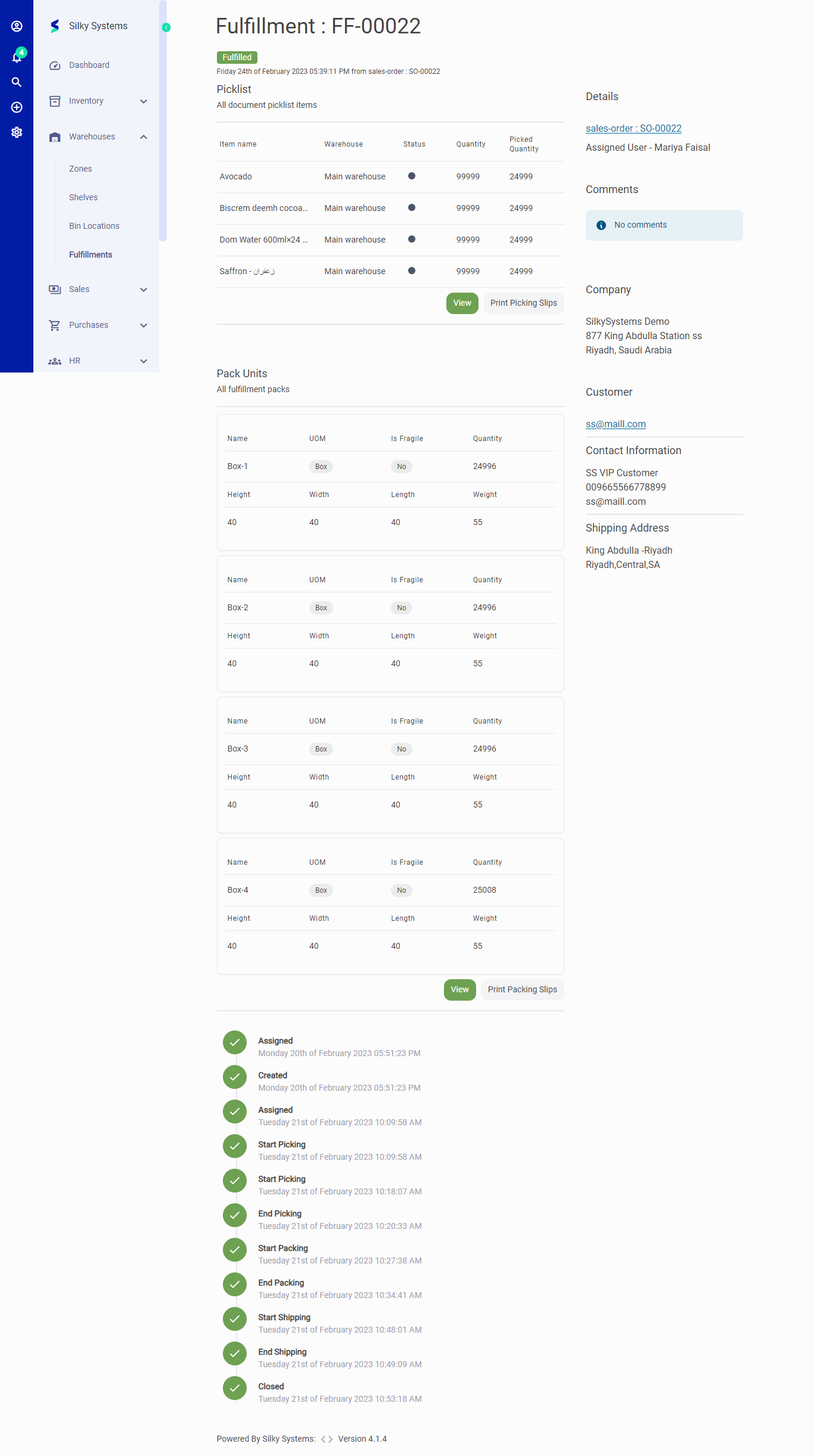 Figure.07 Fulfillments