Bundles
Bundles Overview
The Bundles feature in the inventory management system is designed to facilitate the grouping of various items into a single package. This can be useful for promotions, special offers, or to offer convenience to customers. Below is a step-by-step guide on how to utilize this feature, complemented by screenshots from the system.
Bundles List
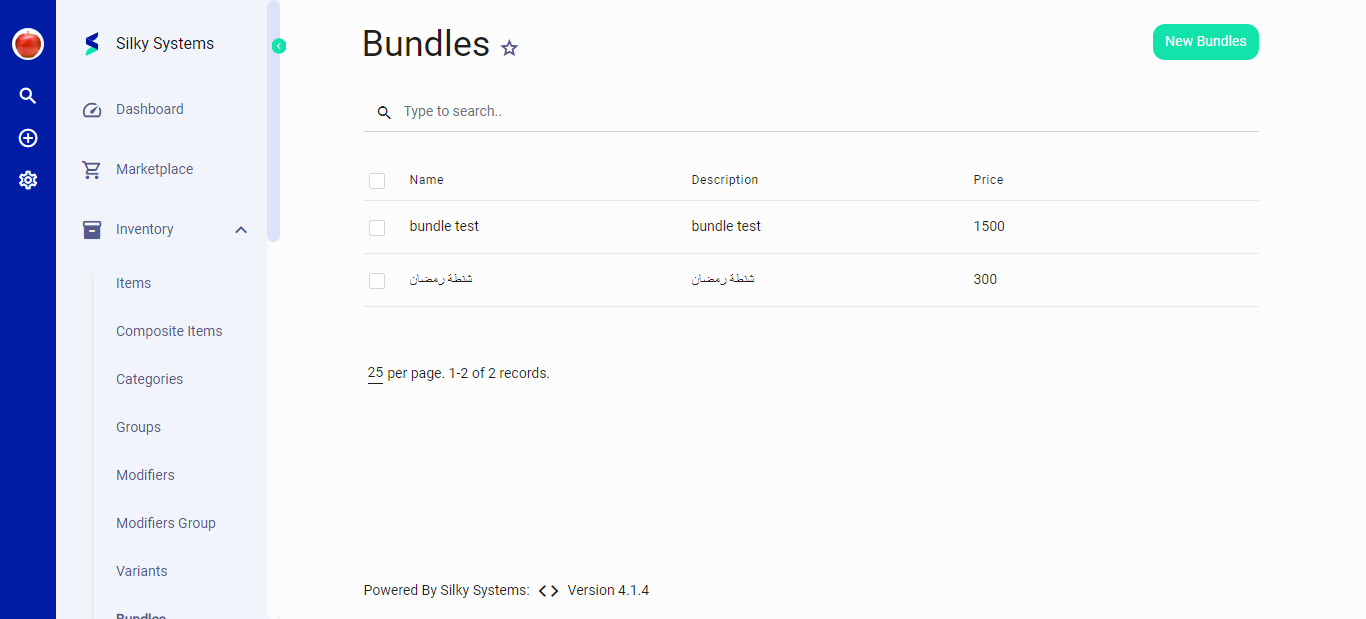 Figure.01 Bundles
The main Bundles page displays a list of all created bundles with details such as:
- Name: The title of the bundle.
- Description: A brief summary of the bundle's contents.
- Price: The total cost of the bundle.
Features
- Search: A feature to find bundles quickly.
- Pagination: Navigate through records if there are more bundles than can fit on one page.
- Create New Bundle: A button to initiate the creation of a new bundle.
Creating a New Bundle
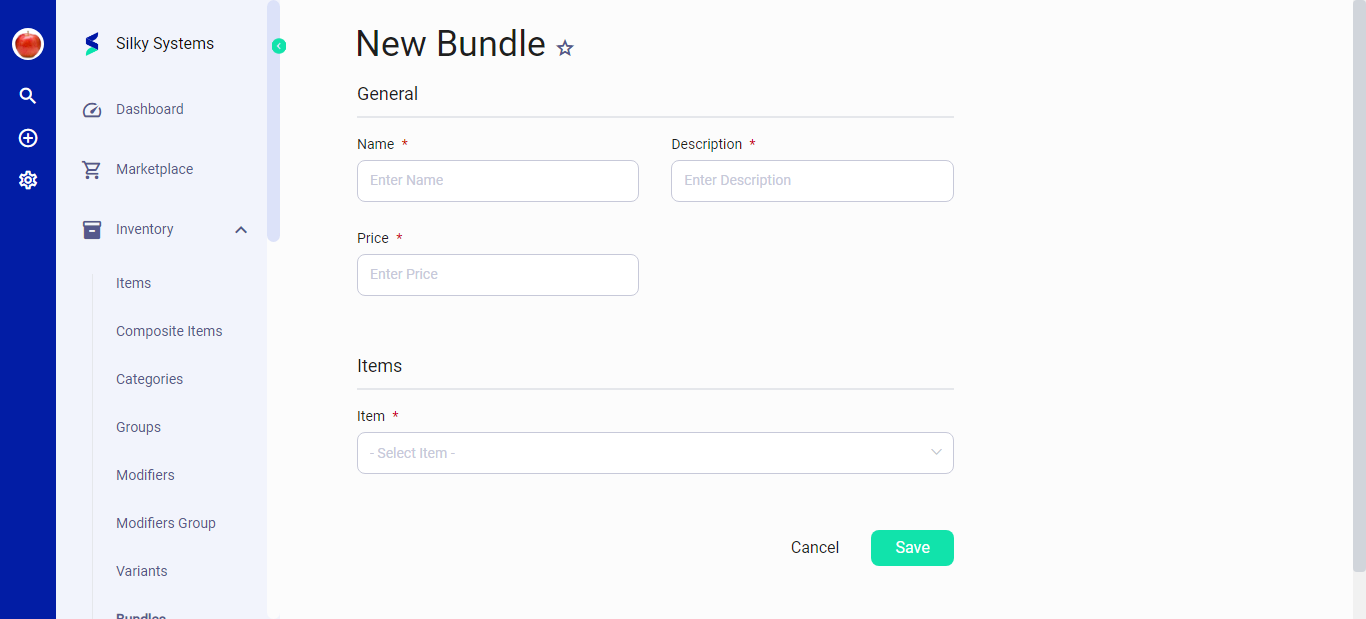 Figure.02 Bundles
Steps to Create a New Bundle
- Navigation: Click the 'New Bundles' button on the main Bundles page.
- Input Details:
- Name: Set a distinctive name for the bundle.
- Description: Describe what the bundle includes.
- Price: Determine the selling price.
- Select Items:
- Choose items from the inventory to include in the bundle.
Click the 'Save' button to store the new bundle in the system.
Editing an Existing Bundle
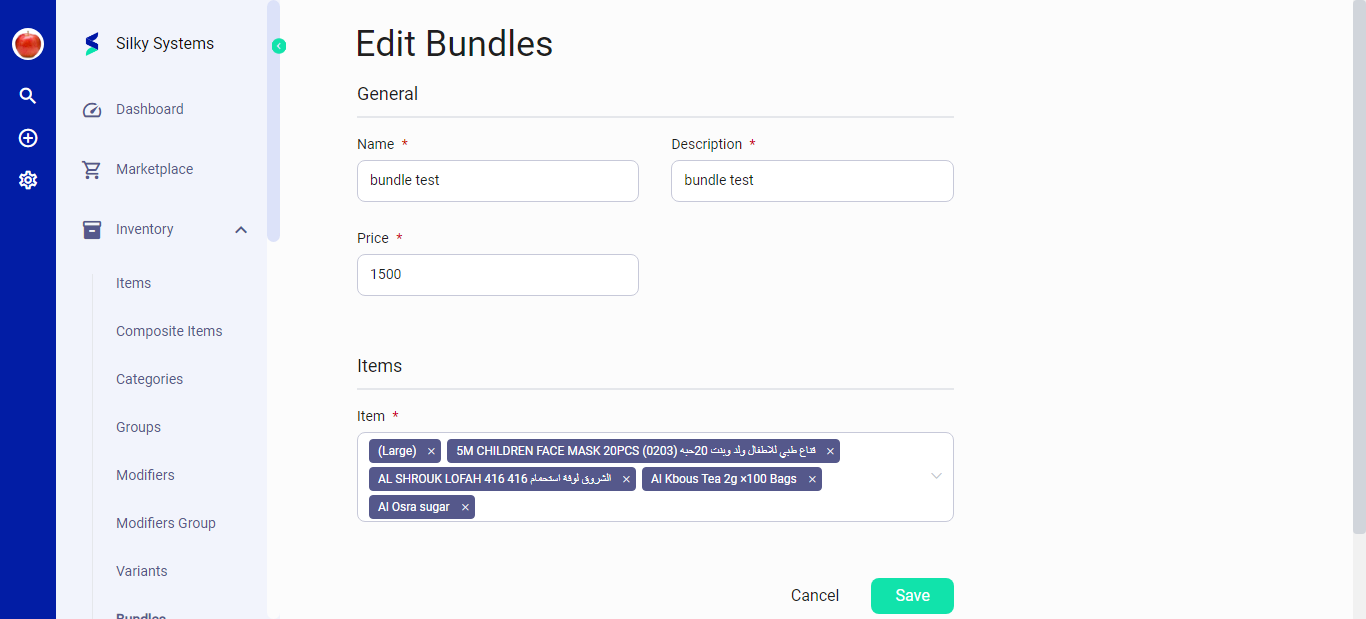 Figure.02 Bundles
Steps to Edit a Bundle
- Choose a Bundle: Select the bundle you want to edit from the list.
- Edit Details:
- Modify the Name, Description, or Price as needed.
- Add or remove items in the bundle.
- Review: Check all changes are as intended.
Click 'Save' to apply the updates to the bundle.