Composite Items
Overview
The Composite Item feature in the inventory system allows for the creation, management, and tracking of items that are composed of multiple sub-items. It is designed to streamline the process of handling stock for products that are sold individually but managed in groups or kits.
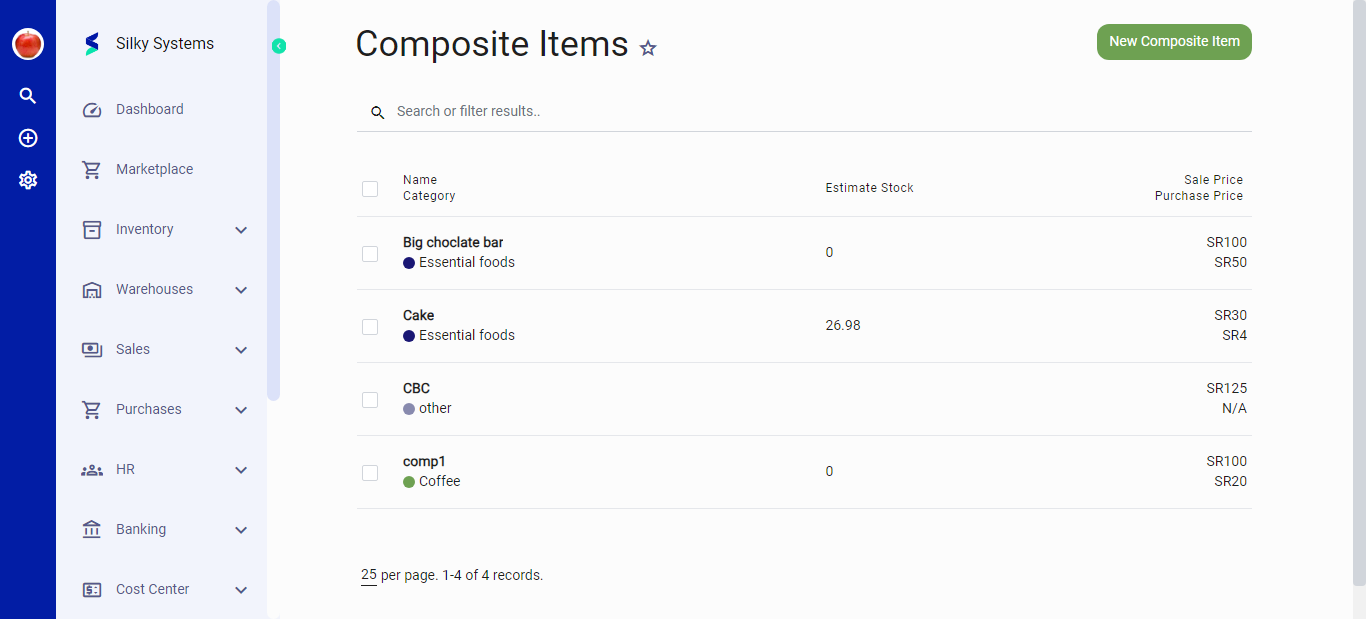 Figure.01 Composite Items List
Composite Items List
- The Composite Items List interface lists all composite items with relevant details such as Name, Category, Estimate Stock, Sale Price, and Purchase Price.
- The “New Composite Item” button on the top right corner allows users to add a new composite item.
- The interface includes a search bar for filtering results, enhancing inventory management efficiency.
Creating a New Composite Item
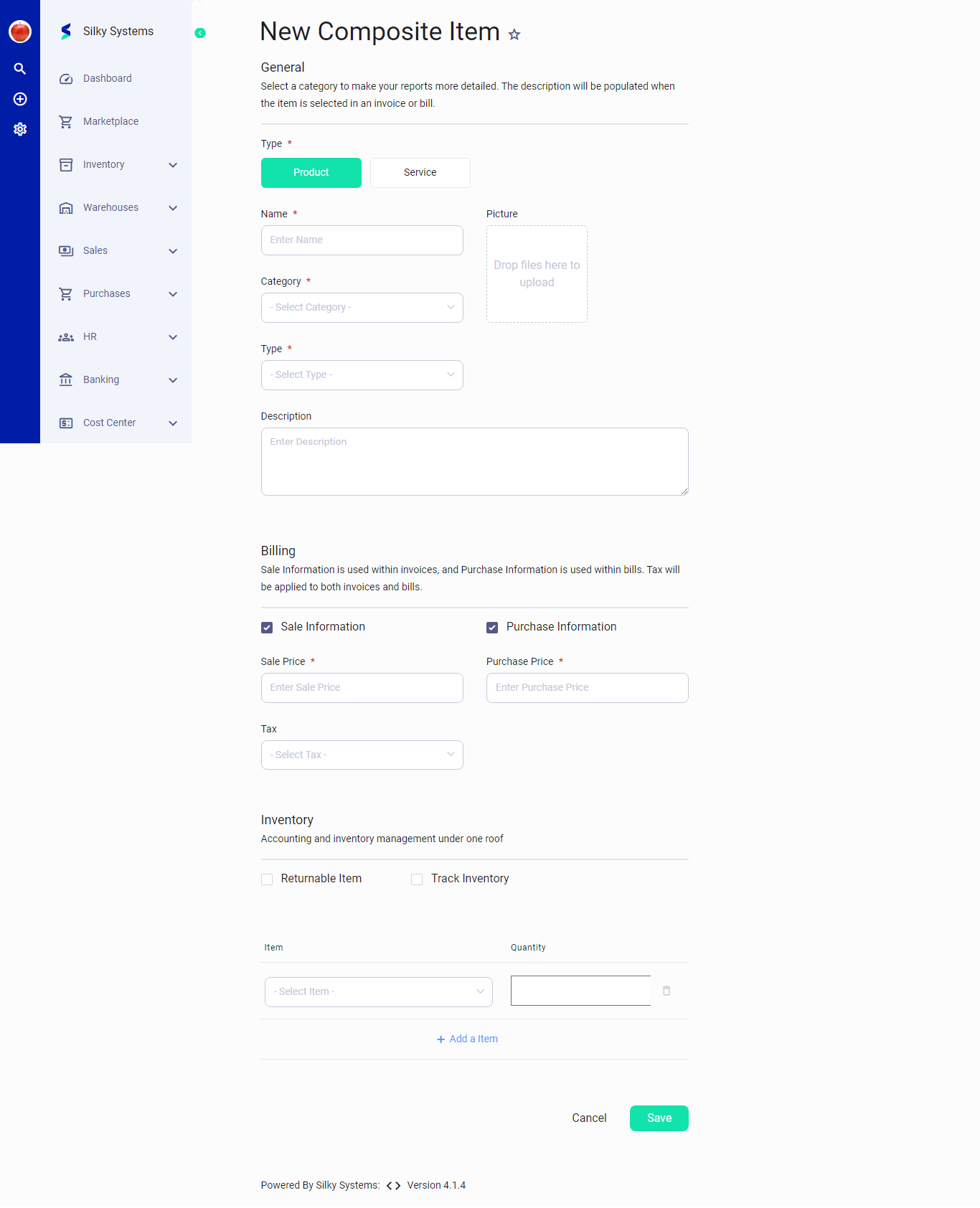 Figure.02 New Composite Item
- Click on the “New Composite Item” button to access the item creation form.
- Type: Select whether the item is a Product or Service.
- Name: Enter the name of the composite item.
- Category: Choose a category from the dropdown list to classify the item.
- Type: Select the appropriate subtype if available.
- Description: Provide a description for the item.
- Picture: An option to upload an image of the item is available.
Billing Section
- Sale Information: Input fields for the Sale Price.
- Purchase Information: Input fields for the Purchase Price.
- Tax: A dropdown menu for selecting the applicable tax rate.
Inventory Section
- Returnable Item: A checkbox for marking the item as returnable.
- Track Inventory: A checkbox to enable tracking of the item's stock levels.
- SKU: Input field for the Stock Keeping Unit identifier.
- Unit: A dropdown menu for choosing the measurement unit.
- Barcode: Input field for the barcode number.
Edit Composite Items
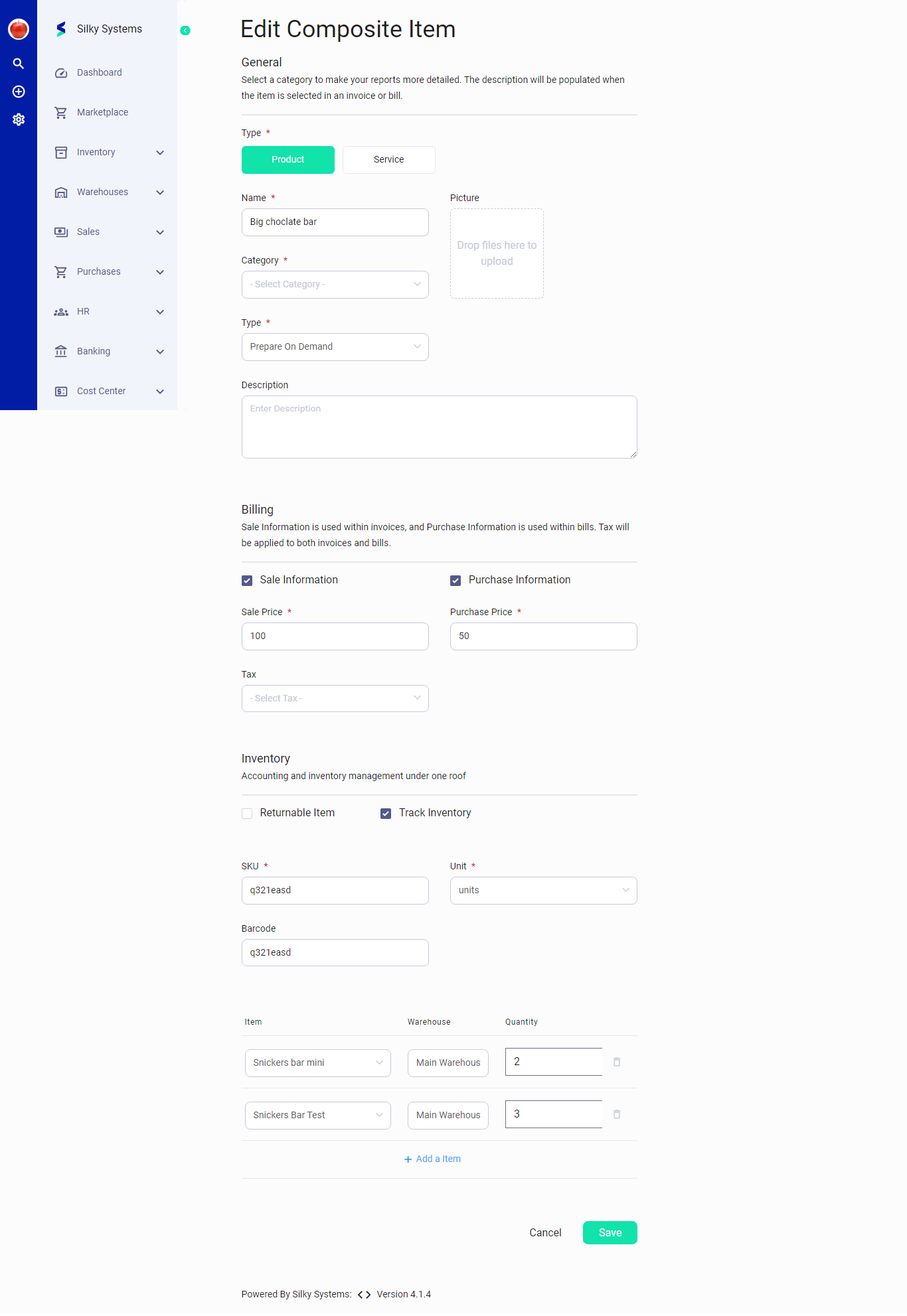 Figure.03 Edit Composite Items
- The inventory section allows adding sub-items with specified quantities.
- To edit an existing composite item, click on the item from the Composite Items List to bring up the edit form with pre-populated data.
- The “Save” button at the bottom of the form commits all the entered information to the inventory system.
- Changes are updated in real-time, affecting stock levels and item details as necessary.