Home
Overview
The main Home page of the POS mobile app serves as the central hub for browsing and managing products. It displays products organized by categories, such as "All Categories," "General," and "Pantry," allowing users to quickly filter and find items. Each product is shown with a thumbnail image, name, and price, with an easy-to-use "+" button to add items to the cart.
The interface also includes a navigation menu, a cart icon with the number of items added, a search option for seamless navigation, and a Scan button scans a product's barcode and adds it to the cart. This intuitive layout ensures a smooth and efficient shopping experience for users.
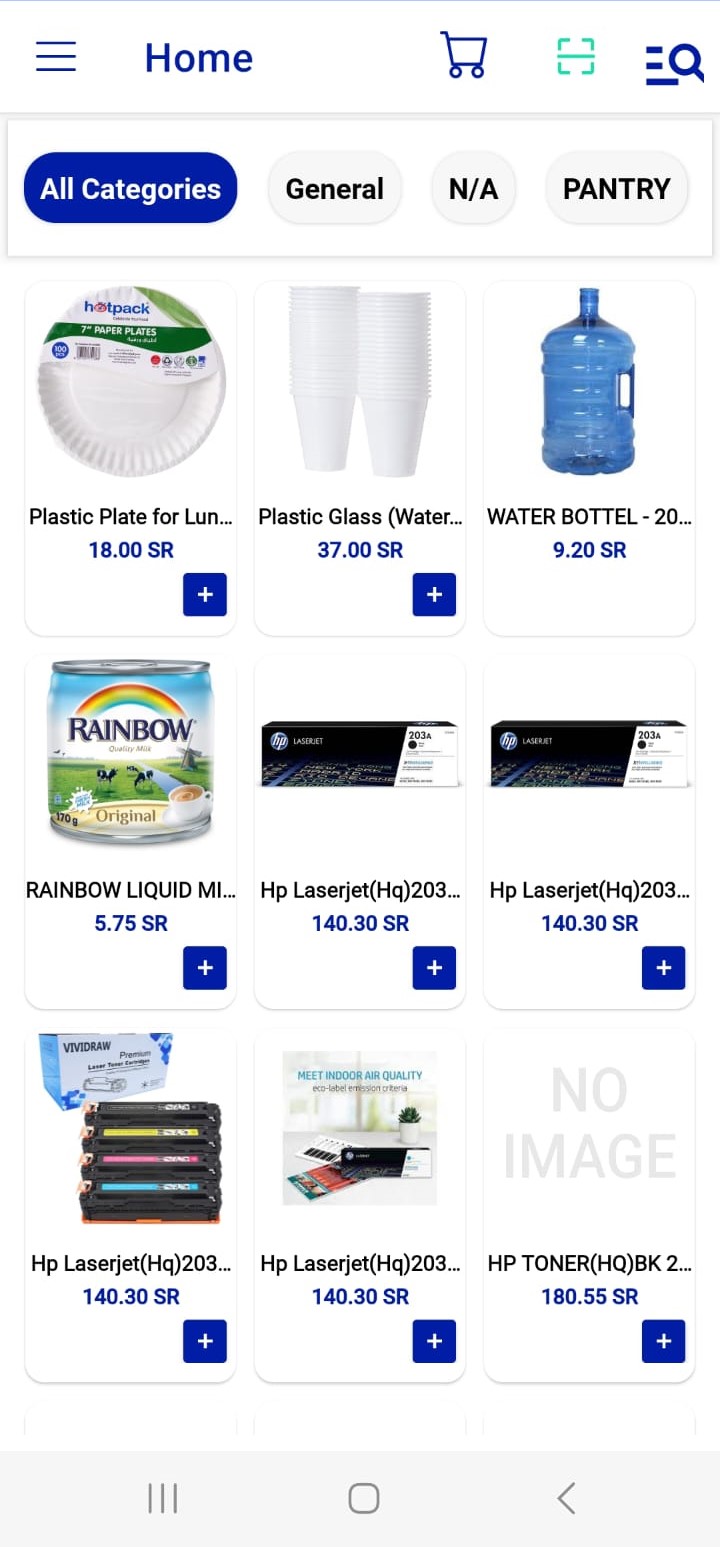 Figure.01 Home
Modifier
The Add-on and Modifier feature in the POS mobile app allows users to customize their product selection by including optional items or adjustments. For instance, when selecting a product like a water bottle, users can add related items such as a dispenser pump or a bottle carrier handle for an additional cost, as shown in the "Add-ons" section. This feature enhances the shopping experience by enabling users to tailor their orders to specific needs. Users can adjust quantities for each add-on using the "+" or "–" buttons and include special instructions in the "Add Note" section for further customization.
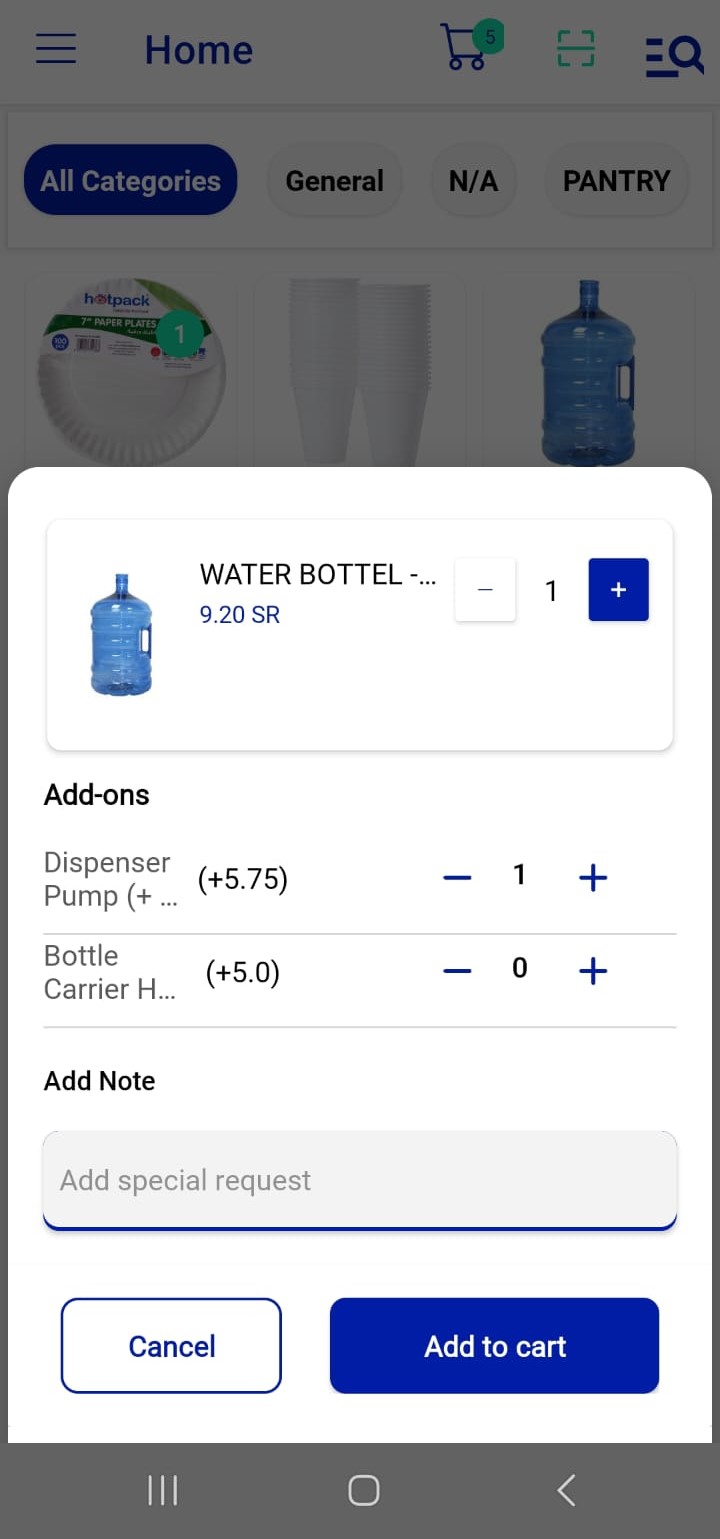 Figure.02 Modifiers
Cart
The cart page in the POS mobile app provides a clear summary of the selected items, displaying product names, unit prices, VAT, quantities, and total costs for each item. Users can adjust item quantities with "+" or "–" buttons or remove items using the delete icon. The bottom section of the cart shows a detailed breakdown of the subtotal, applied discounts, VAT, and the total amount.
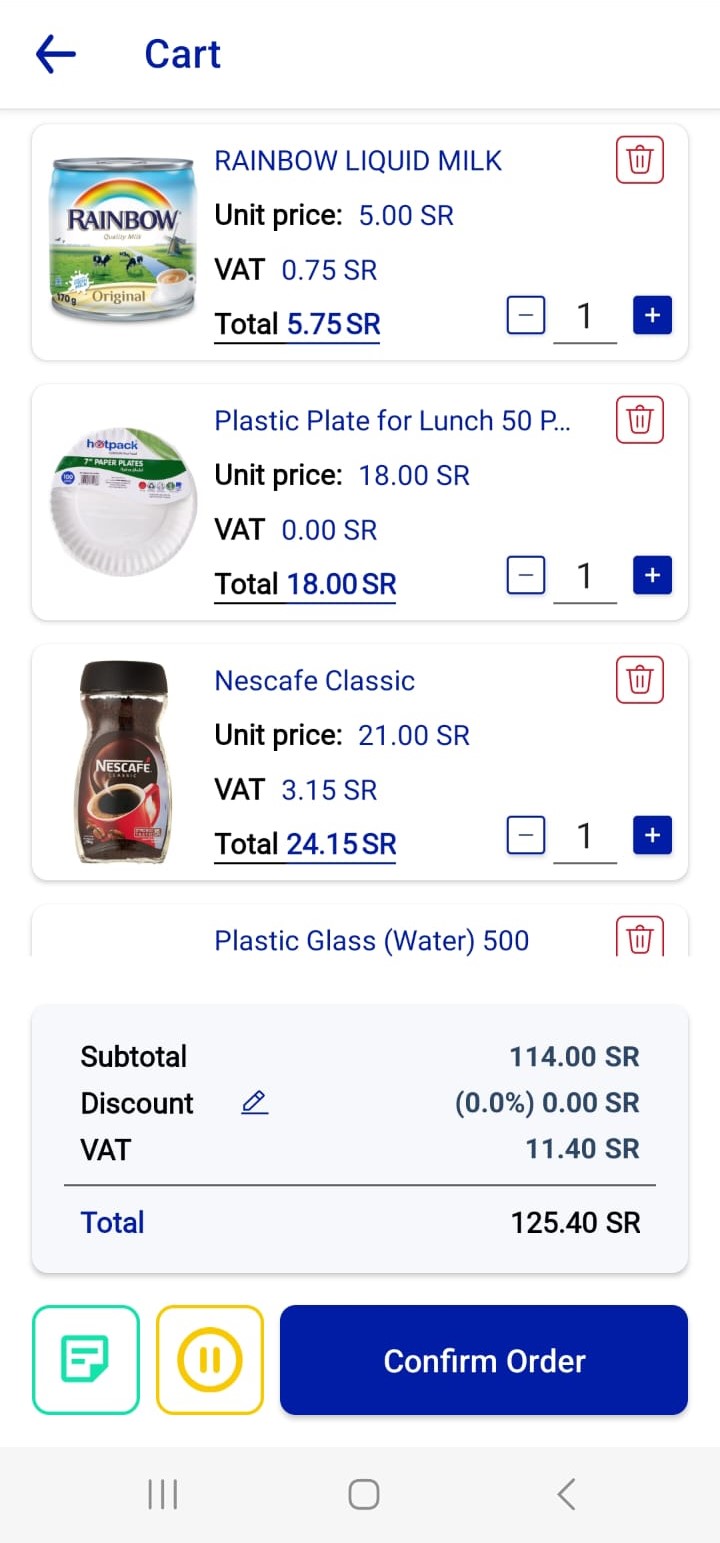 Figure.02 Cart
Discount
The discount feature allows users to apply discounts by tapping the discount section, selecting the discount type (e.g., percentage or fixed amount), and entering the desired value. This feature simplifies order customization and ensures accurate billing.
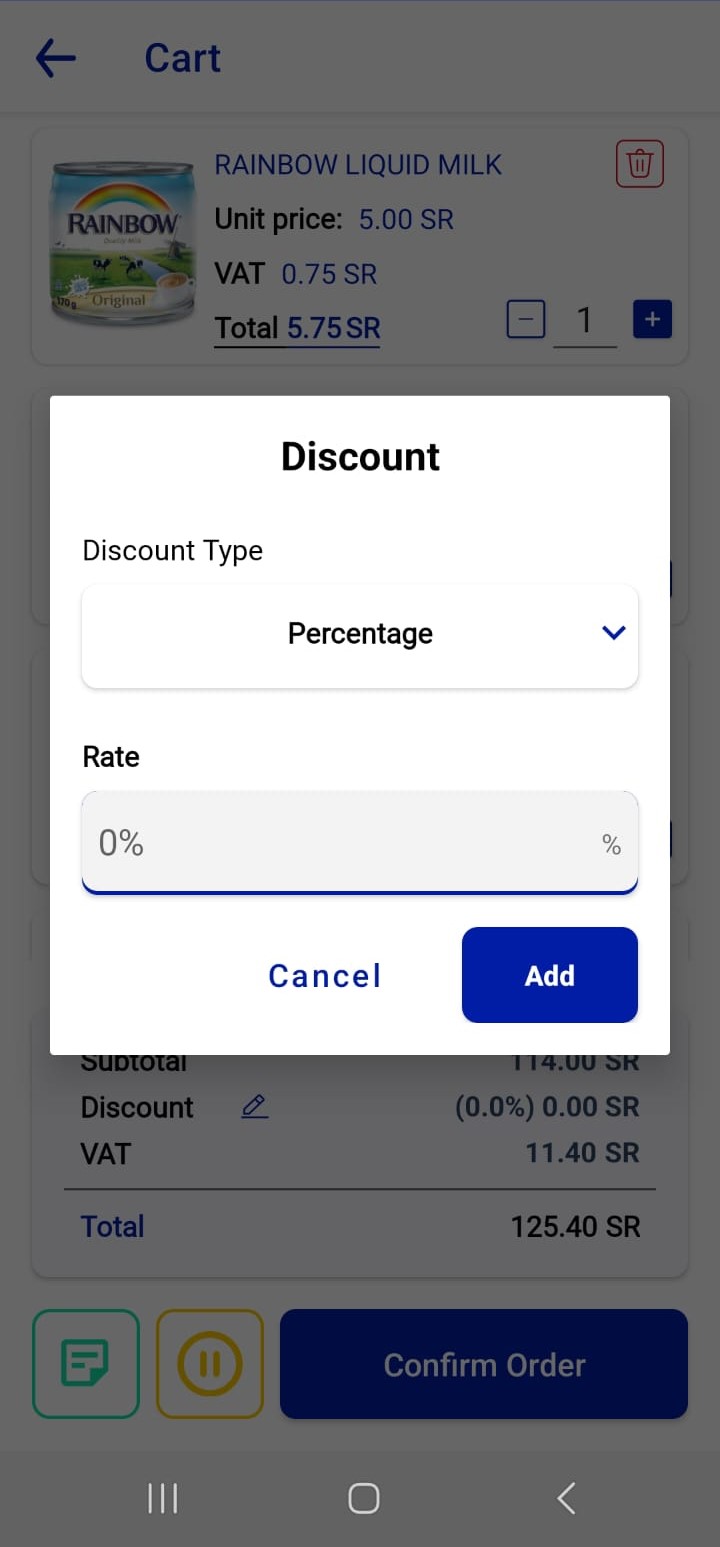 Figure.03 Discount
Payment
The payment page in the POS mobile app streamlines the checkout process by providing multiple payment options, including Cash, Card, Transfer, and Split payments. Users can select the customer type (e.g., Walk-In Customer) or add a new customer using the "+" button. The selected payment method displays relevant fields, such as the amount paid and any change due for cash payments. The app automatically calculates the total, including VAT, and updates the remaining balance, ensuring accurate transactions. This flexible and user-friendly interface supports various payment preferences, simplifying the final step of the sales process.
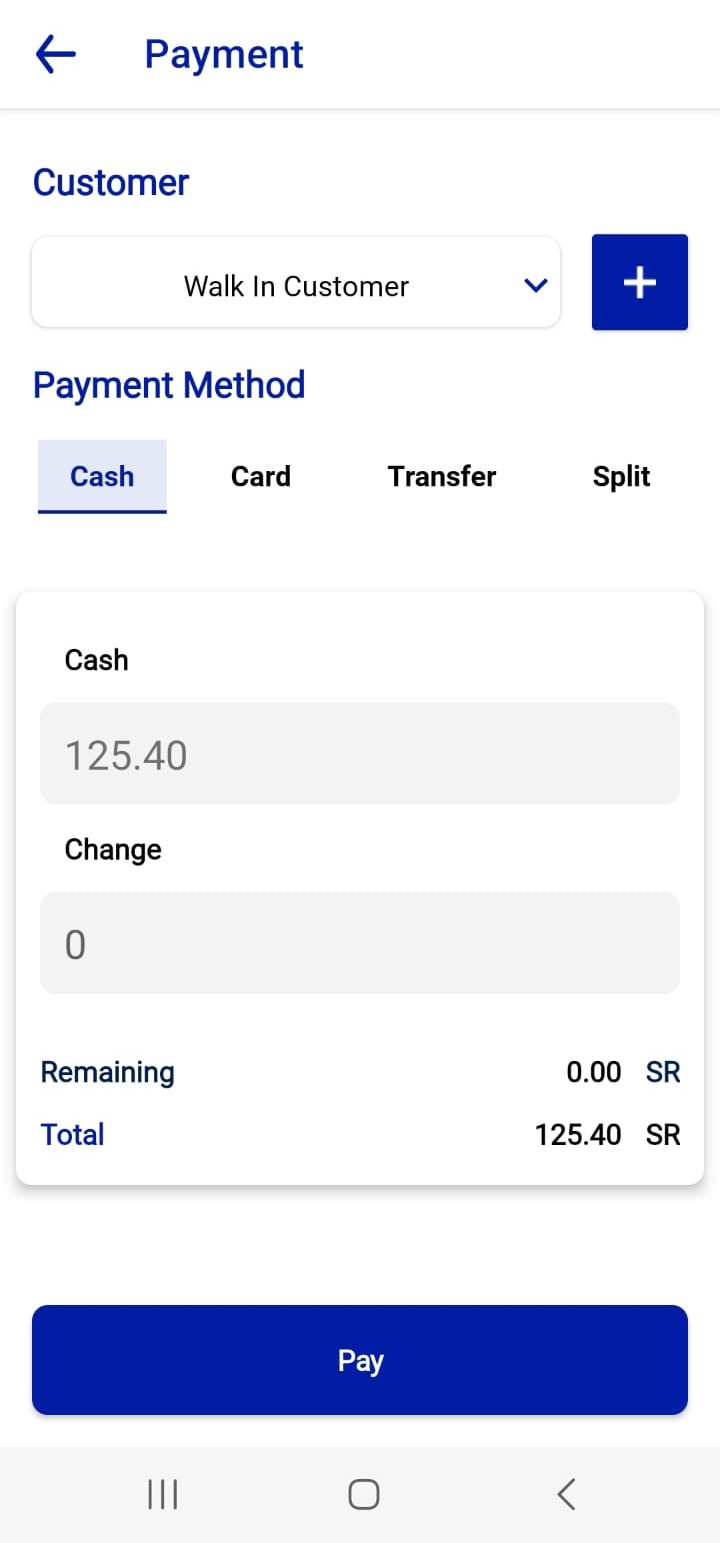 Figure.04 Payment
Invoice Receipt
The payment receipt page in the POS mobile app provides a detailed summary of the completed transaction. It includes essential information such as the business name, tax number, CR number, date, time, and the cashier's name. The receipt lists all purchased items, along with their quantities, prices, VAT, and totals, ensuring transparency for both the business and the customer. It also specifies the payment method used (e.g., cash, card). At the bottom, users can choose to print or share the receipt via the respective buttons, making it easy to provide customers with physical or digital copies for their records.
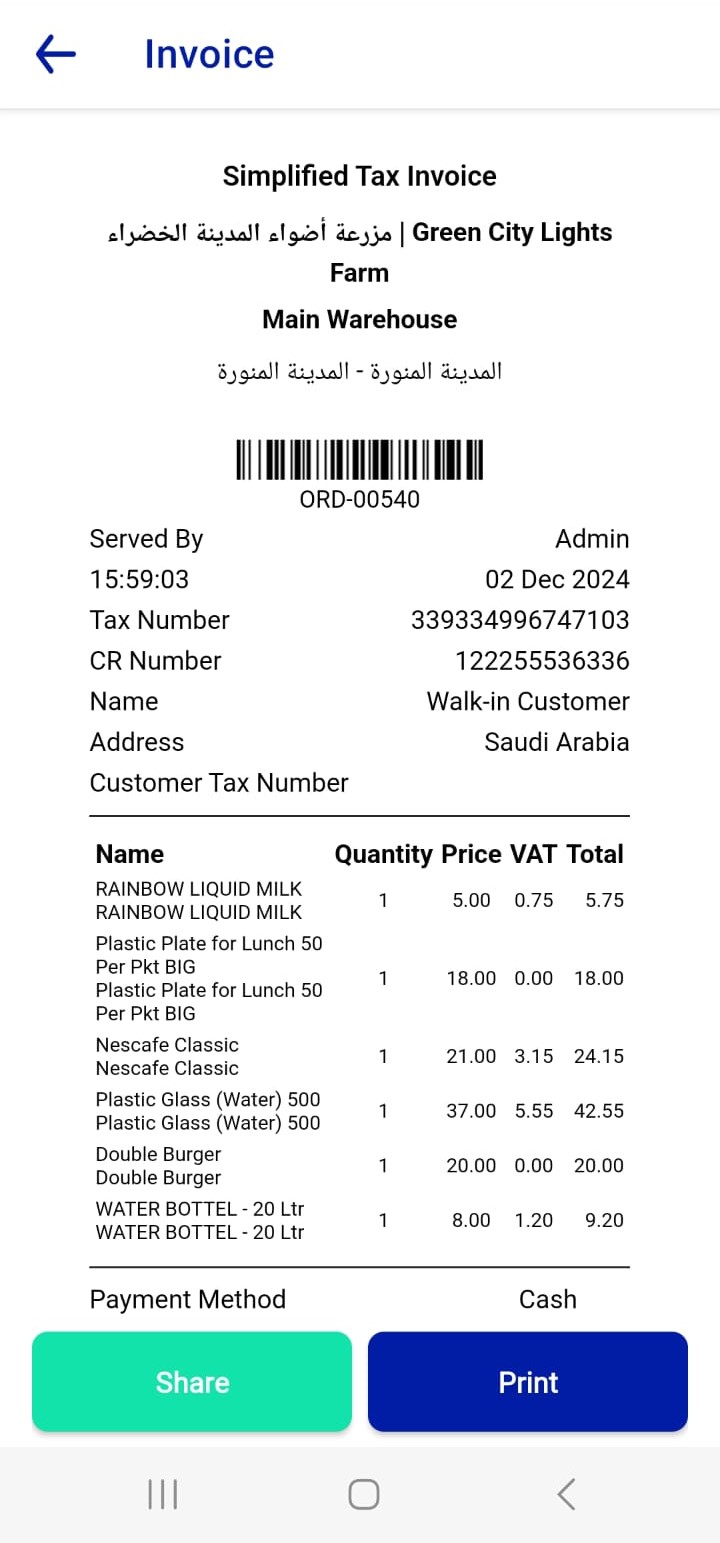 Figure.05 Receipt