Orders
The Orders feature in the POS mobile application allows users to view, manage, and track customer orders in a clear and organized manner. This guide provides an overview of the Orders interface and explains how to interact with its key functionalities.
Overview
The Orders screen displays a list of all customer transactions. Each order entry provides essential details such as:
- Order ID (e.g.,
ORD-00540) - Date and Time of the transaction
- Customer Type (e.g., Walk-in Customer)
- Payment Method (e.g., Payment-Cash, Split)
- Order Status (e.g., Processed, Paid, or Suspended)
- Total Amount Paid
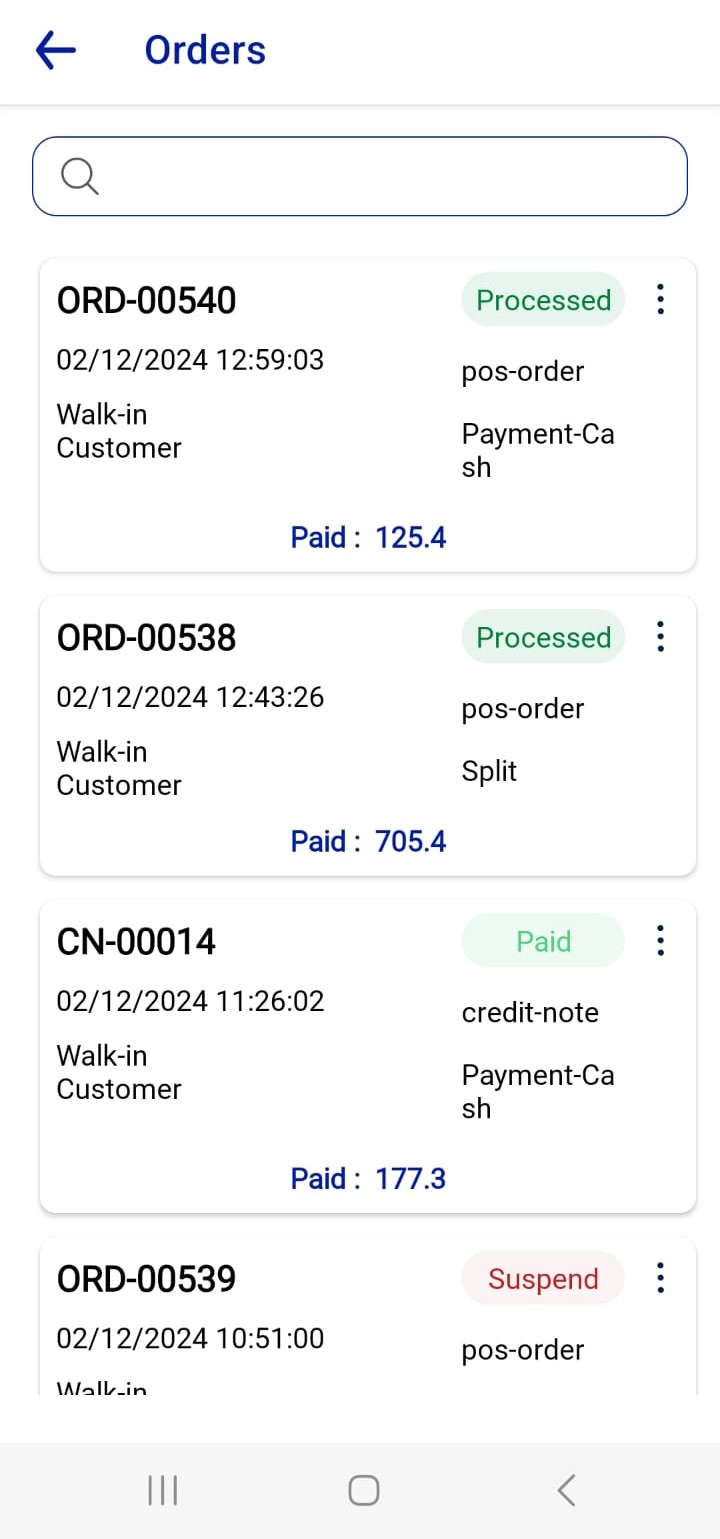 Figure.01 Orders
Navigating the Orders Screen
Search Bar
- Use the search bar at the top to quickly locate an order by entering the Order ID or keywords.
Order Status Indicators
- Processed: The order has been successfully completed.
- Paid: Payment has been made in full.
- Suspended: The order is incomplete or awaiting further action.
Actions Menu
- Tap the three-dot icon next to an order to reveal action options. Examples include:
- View: View detailed information about the order.
- Return: Process a return for the order.
- Activity Log: Track changes or actions taken on the order.
- Tap the three-dot icon next to an order to reveal action options. Examples include:
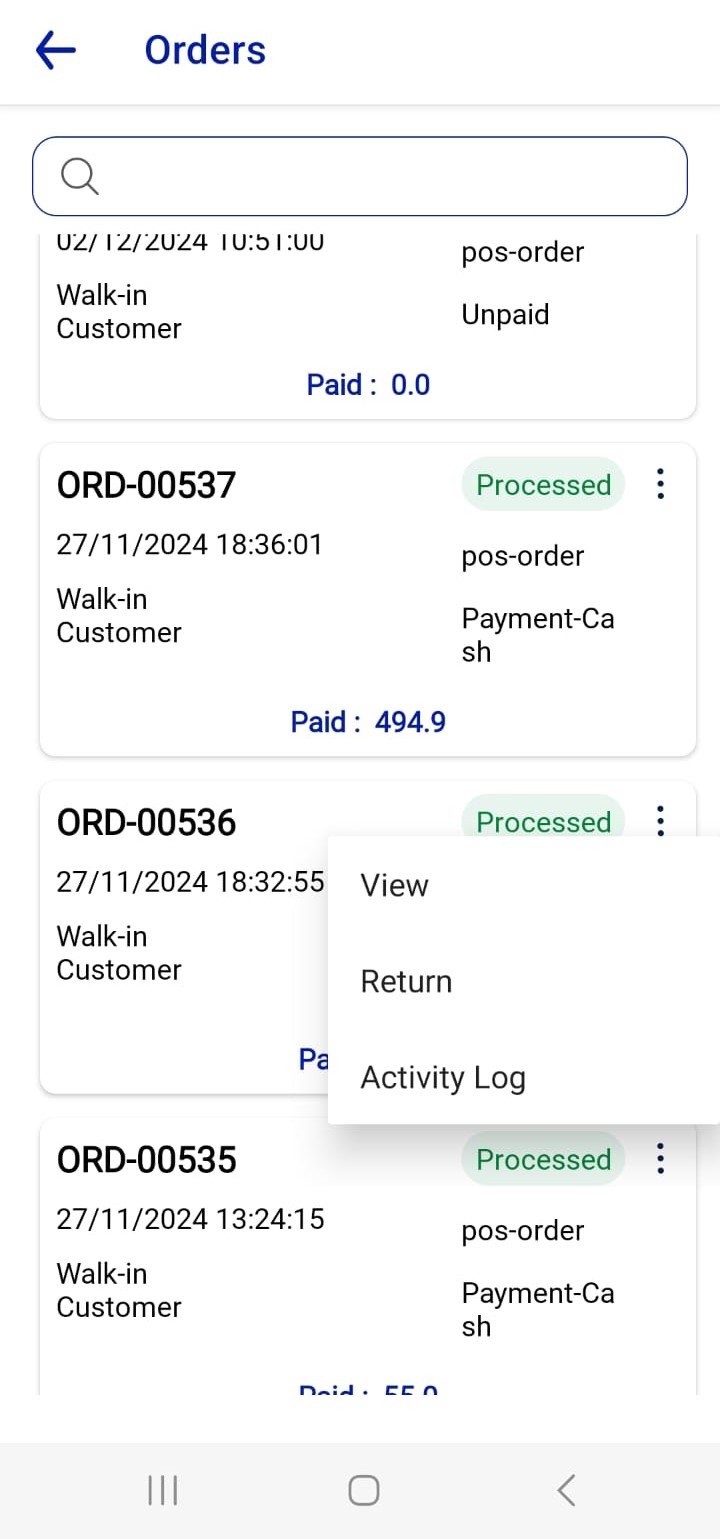 Figure.02 Orders
Step-by-Step: Managing Orders
1. View Order Details
- Tap the three-dot menu beside an order.
- Select View to open the order's full details, including itemized breakdowns, payment methods, and timestamps.
2. Process Returns
- Select Return from the action menu to initiate a return for the selected order. Follow on-screen prompts to specify items or amounts to be refunded.
3. Track Activity
- Use the Activity Log to view a history of actions associated with the order. This feature is useful for audits or resolving disputes.
This feature ensures that all transactions are easily accessible and provides tools to streamline order management, offering a seamless experience for both staff and customers.