Suspended
The Suspended Orders feature in the POS mobile application allows users to temporarily pause ongoing transactions and retrieve them later. This is useful when a customer needs to delay payment or complete their purchase at a later time without losing transaction details.
Overview
The Suspended Orders screen displays a list of all suspended transactions. Each entry provides key details about the order, including:
- Order ID: A unique identifier for the transaction (e.g.,
ORD-00539). - Products: The number of items in the order.
- Date and Time: The exact time the order was suspended.
- Customer Type: Indicates if the customer is a walk-in or linked to an account.
- Order Total: The total value of the order.
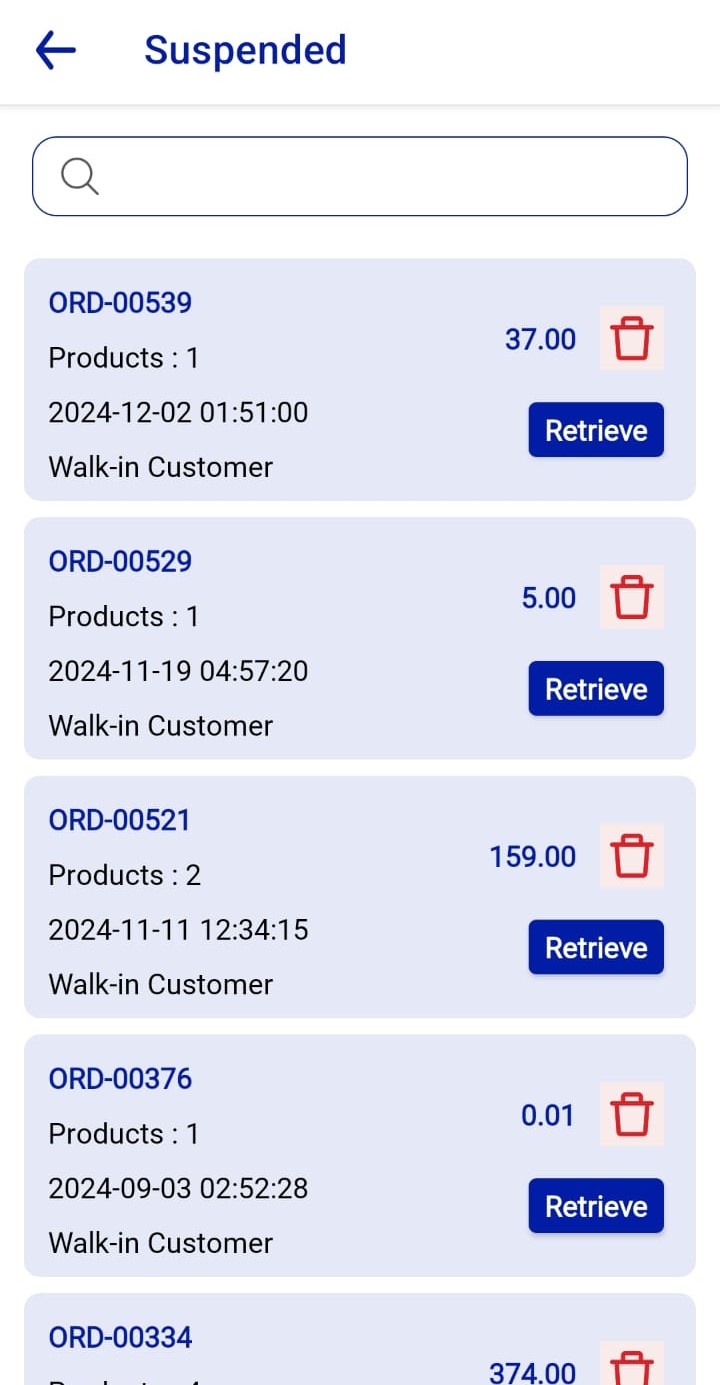 Figure.01 Suspended
Key Features
Search Functionality
- A search bar at the top of the screen allows users to quickly locate specific suspended orders using keywords such as the Order ID.
Action Buttons
- Retrieve
- Tapping the Retrieve button restores the suspended order, allowing you to continue processing it in the main sales screen.
- Delete
- Tapping the Trash icon deletes the suspended order permanently. A confirmation prompt may appear to avoid accidental deletions.
Step-by-Step Guide
Accessing Suspended Orders
- Navigate to the Suspended Orders section from the main menu of the application.
Finding a Suspended Order
- Use the search bar to enter the Order ID or scroll through the list to locate the desired transaction.
Retrieving a Suspended Order
- Tap the Retrieve button next to the order you want to resume. The order will be restored to the main sales screen for completion.
Deleting a Suspended Order
- Tap the Trash icon next to the order you want to remove. Confirm the action when prompted.
This feature ensures flexibility in handling customer transactions, making it a vital tool for managing interruptions efficiently.