Return
The Return feature in the POS mobile application allows users to process product returns for completed sales transactions. This feature is designed to simplify and streamline the return process, ensuring accurate updates to inventory and invoices.
Accessing the Return Feature
- Open the POS mobile application and navigate to the Return section from the main menu.
- Enter the Invoice No for the transaction that requires a return:
- Tap the input field labeled Invoice No.
- Use the on-screen keyboard or barcode scanner icon to input the invoice number.
- Tap OK to load the invoice details.
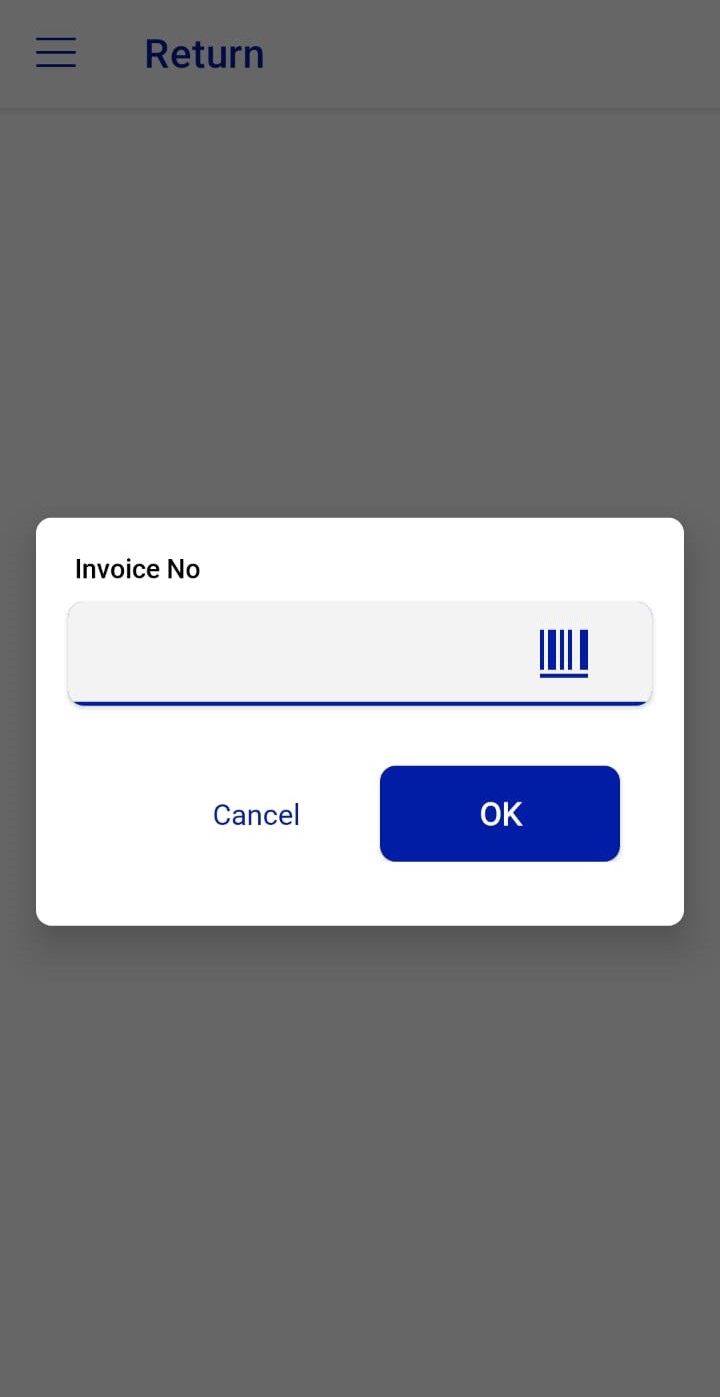 Figure.01 Return
Returning Items
Step 1: Review Invoice Details
Once the invoice is loaded, the following information is displayed:
- Invoice No: Identifies the specific transaction (e.g., ORD-00542).
- Customer Information: Displays customer details (e.g., Walk-in Customer).
- Transaction Date/Time: Shows when the original sale was made.
Step 2: Verify Order Summary
The Order Summary section shows:
- Subtotal: Total amount before discounts or VAT.
- Discounts and VAT: Amounts applied during the original sale.
- Total: Final amount of the transaction.
Step 3: Select Items to Return
- In the Order Details section, locate the item(s) to return.
- Adjust the Return Qty for the product:
- Use the + and – buttons to increase or decrease the quantity to be returned.
- Ensure the selected quantity does not exceed the sold quantity.
- (Optional) Use the Select All option to mark all items for return.
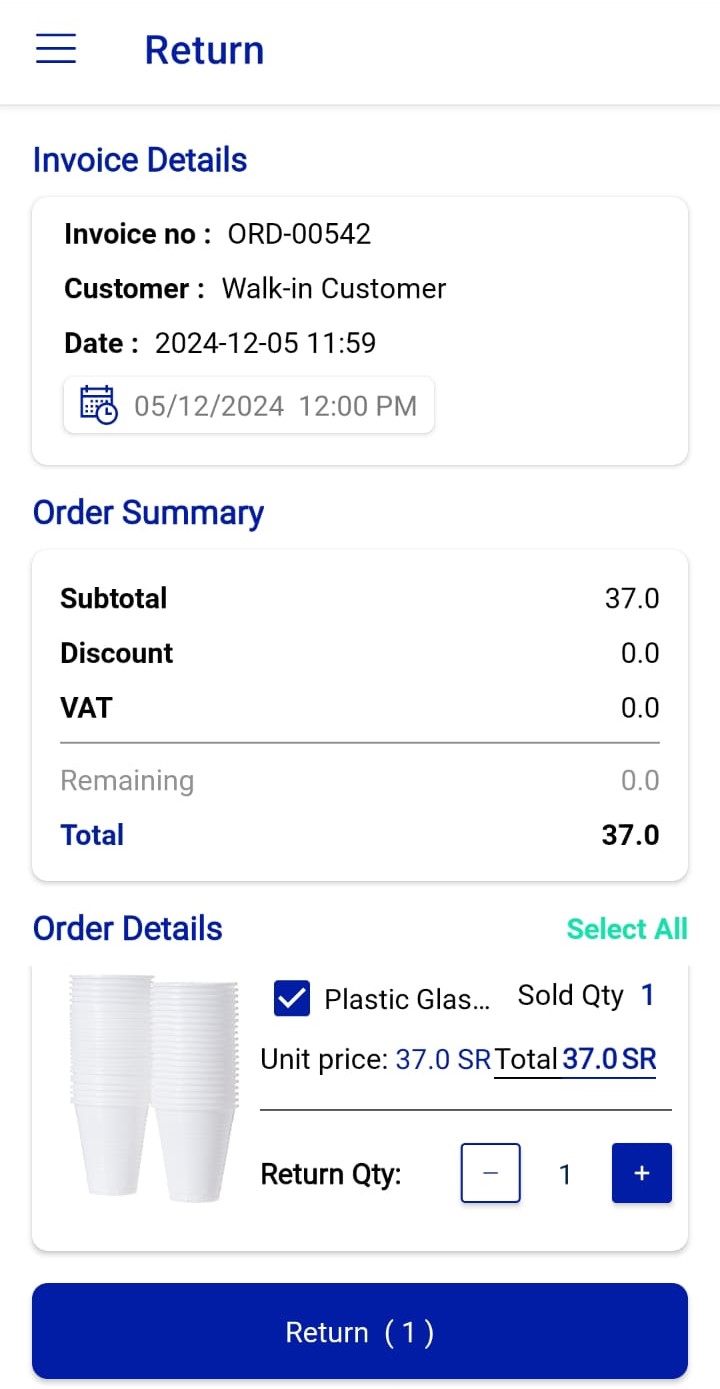 Figure.02 Return
Completing the Return
- Once the return quantities are set, tap the Return (X) button at the bottom (where "X" indicates the number of items being returned).
- Confirm the return in the dialog box that appears.
- Upon successful completion, the system updates:
- Inventory: Returned items are restocked.
- Invoice: Reflects the return and adjusted totals.
Notes
- Ensure you have the correct invoice number to avoid errors.
- Partial returns are supported; adjust the return quantity as needed.
- Any associated refunds will need to be processed separately, if applicable.
This feature ensures a smooth return process, providing an efficient way to manage sales adjustments and maintain inventory accuracy.